Add Gallery Blocks
How to Add Gallery Blocks in Squarespace 7.1 after Installing the Admin UI Plugin
Step 1. Add New Section
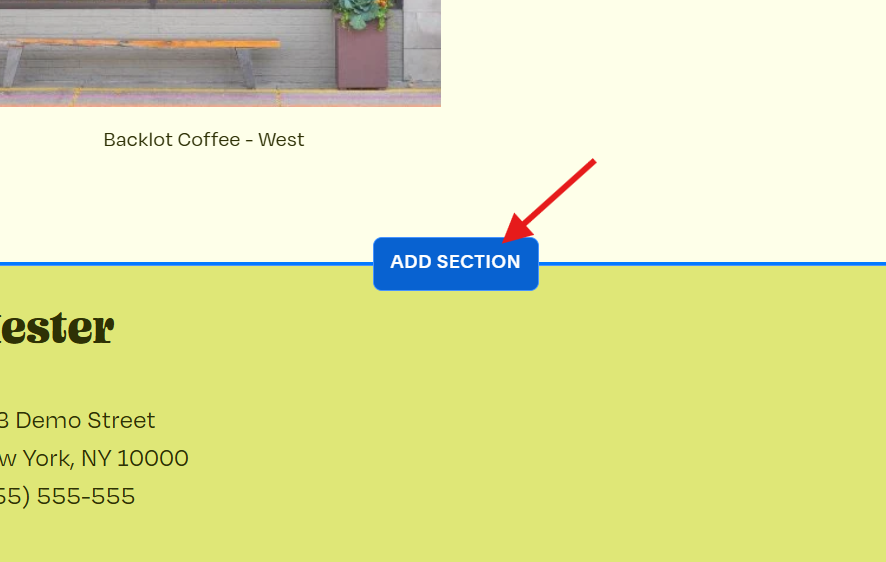
Click the ADD SECTION button to add a new section.
Step 2. Open Code Injection
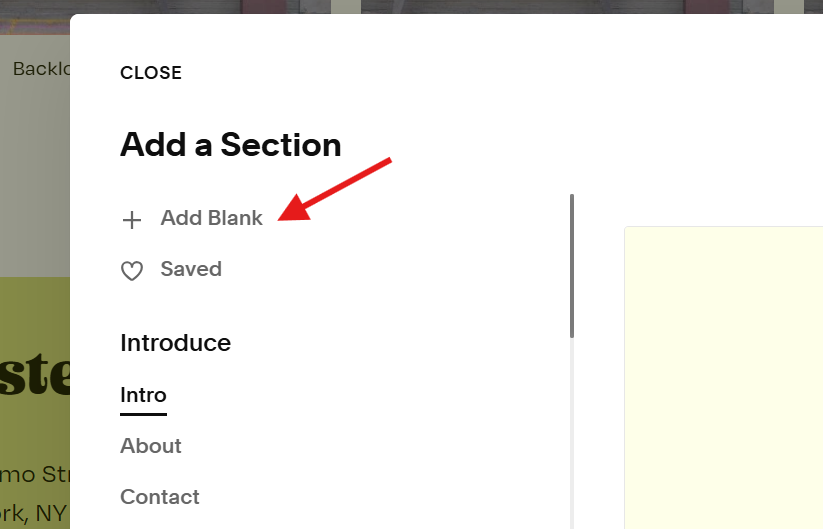
Click Add Blank below Add a Section.
Step 3. Use Classic Editor
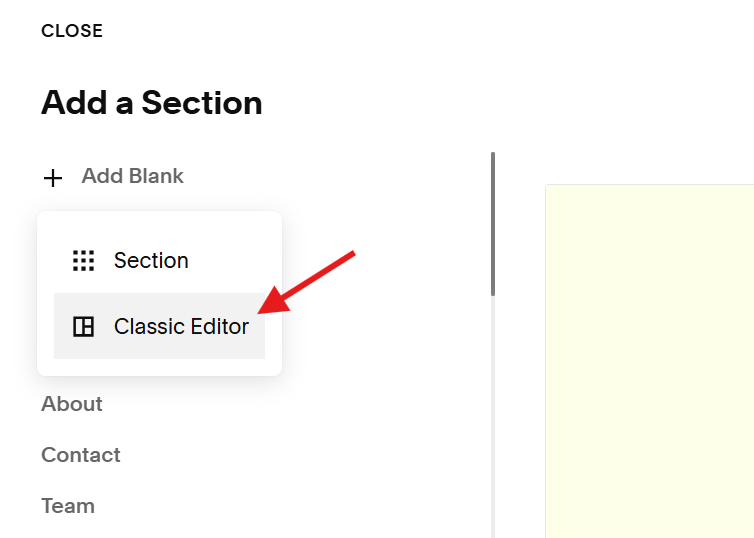
Select the Classic Editor option.
Where to find the installation code?
The code is in the .txt file from the email you received when you purchased the Background Video Utils plugin.
Haven’t received the email with the code?
No worries, we’ll resend the email and the code to you. Email us.
Step 4. Add New Block
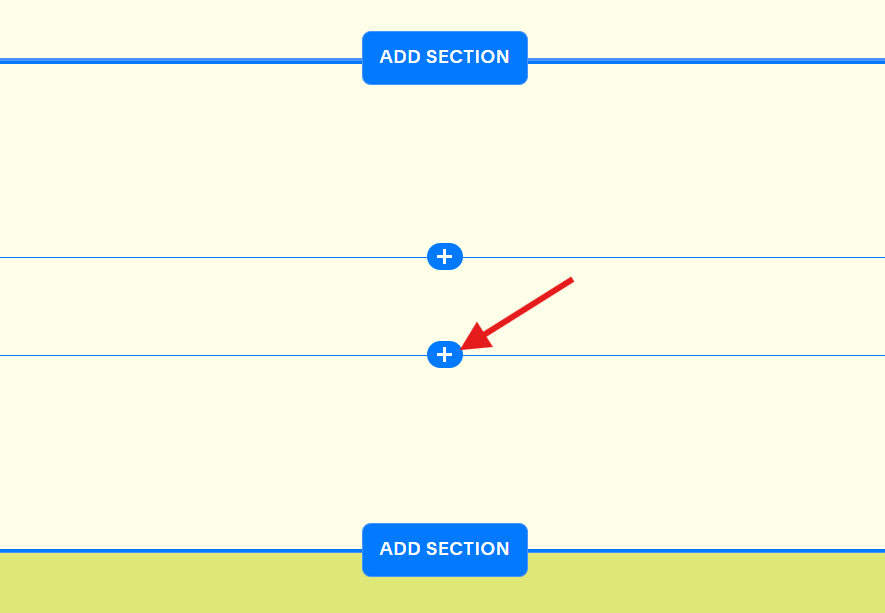
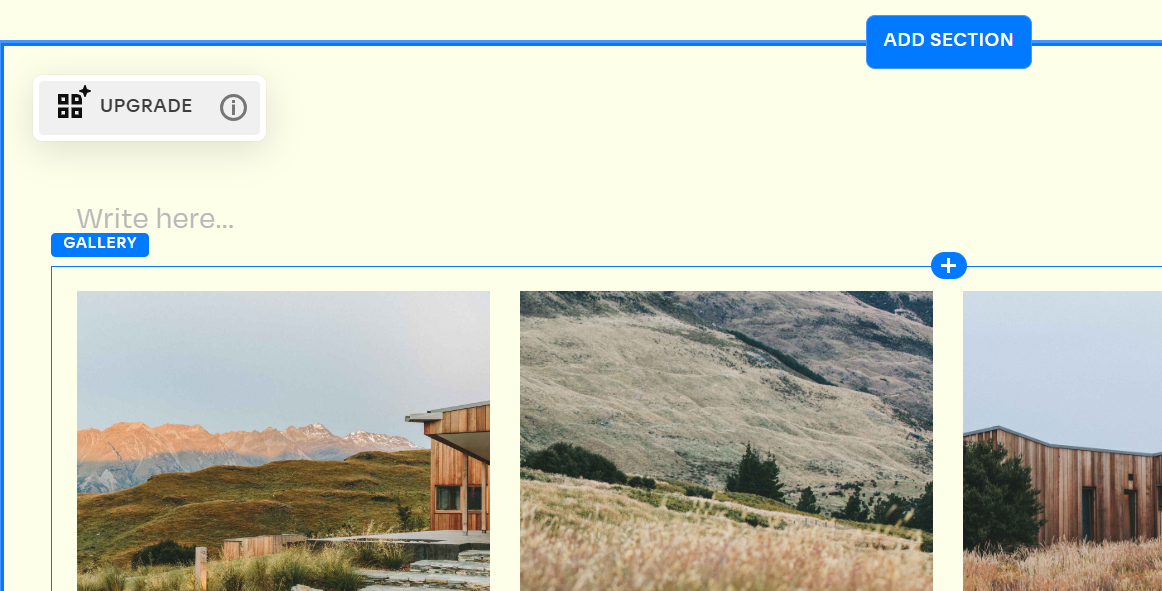
Click the new section and click the + button to call up the new block menu.
Step 5. Add Gallery Block
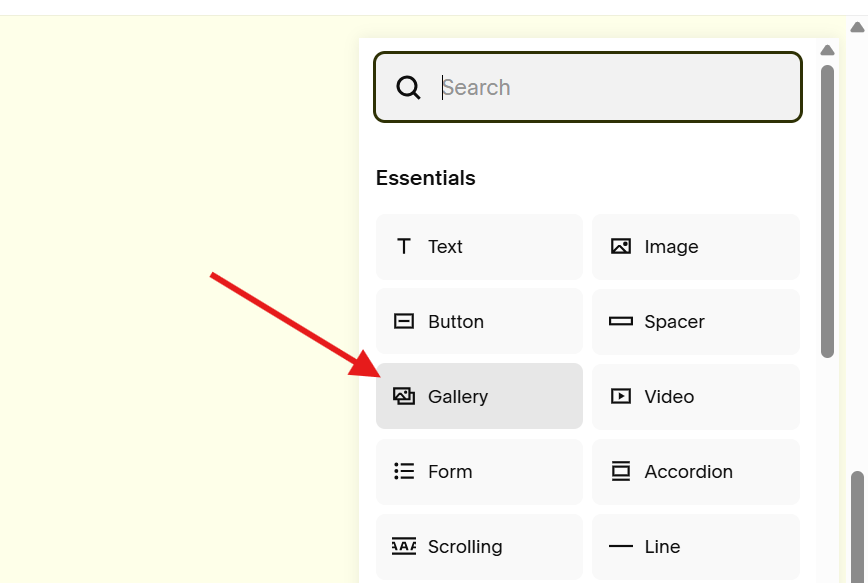
Click the Gallery option from the menu. Or type Gallery in the search bar to filter the gallery block.
Step 6. Save
Click the SAVE button on the upper left corner of the window to save your gallery block.
Need Help?
Tell us your question, concern or suggestion.