Fix Uncopied or Wrong Copied Items
What to do if the extension failed to copy pages or copied pages but incorrect
TL;DR
Just re-run CREATE FROM DATA and replace the page (or pages) that weren’t copied correctly.
Step 1. Click CREATE FROM DATA button
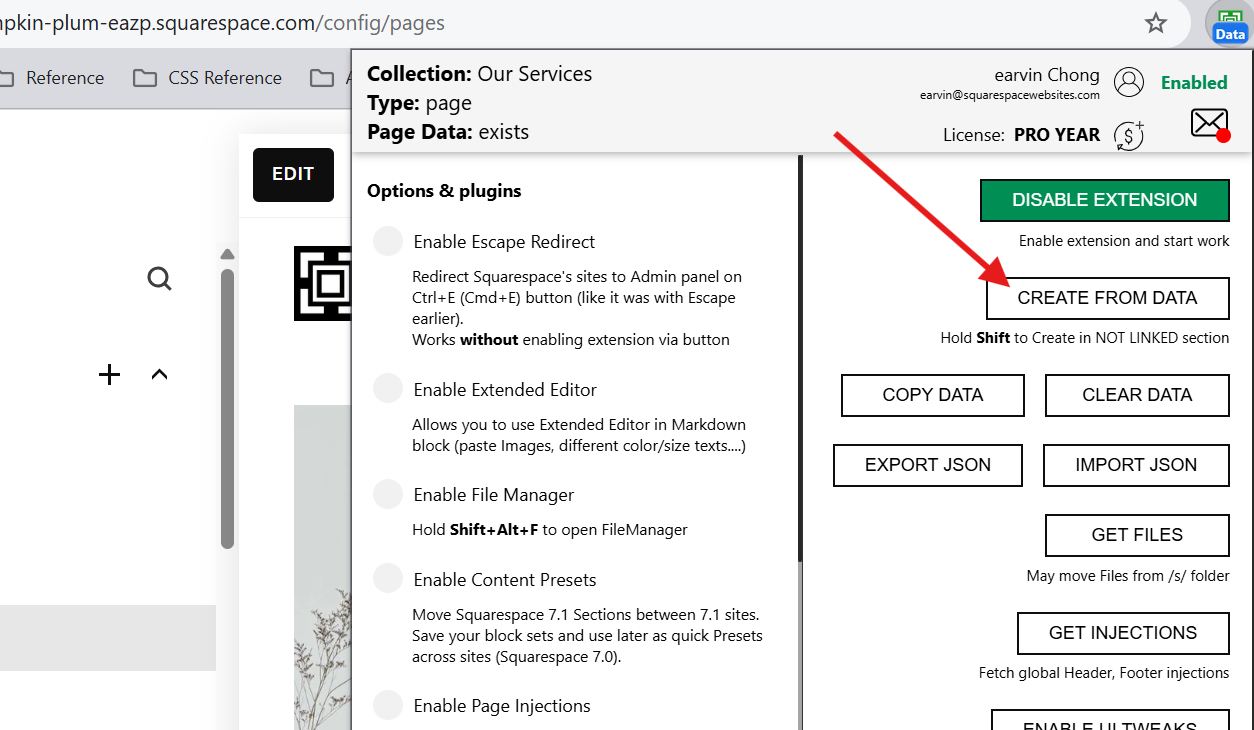
Click the CREATE FROM DATA button and re-run the copy.
Can’t click Create From Data button?
That means you don’t have the page data. Go back to the site and copy the page, then click CREATE FROM DATA.
Tip #1:
If you’re recopying pages because the pages that were copied are incomplete or wrong, delete the page before recopying so it won’t create a duplicate.
Tip #2:
If you’re copying collections (like blogs, store, portfolio), you can select which pages to recopy so you don’t have to do the entire collection.
Do this if you only have a few pages you need to recopy.
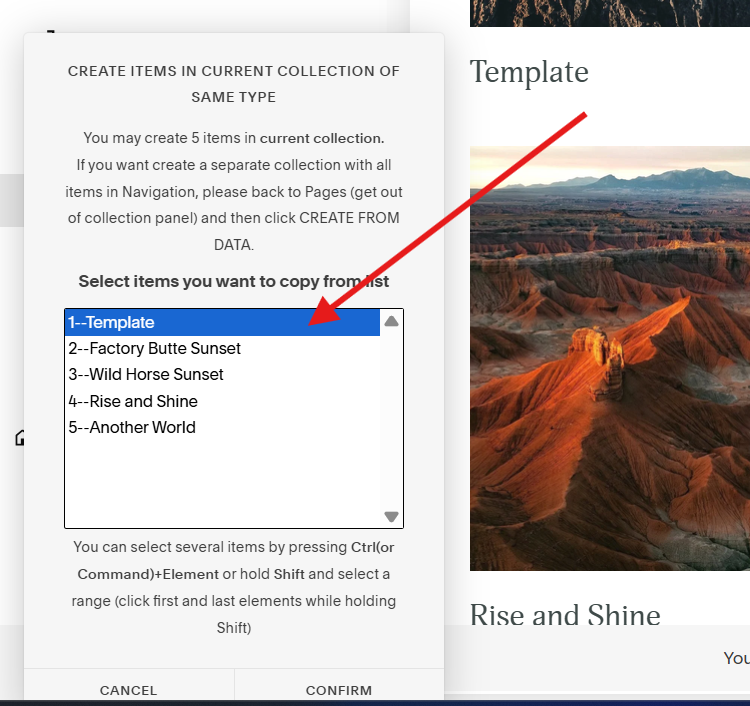
The selected items will change it’s background color to blue.
How to select multiple pages?
Press and hold the Shift key on your keyboard while clicking the pages you want to copy.
How to unselect a page?
Simply double click to unselect an item. It’ll turn back to having a white background showing that’s it’s unselected.
Step 2. Confirm and wait
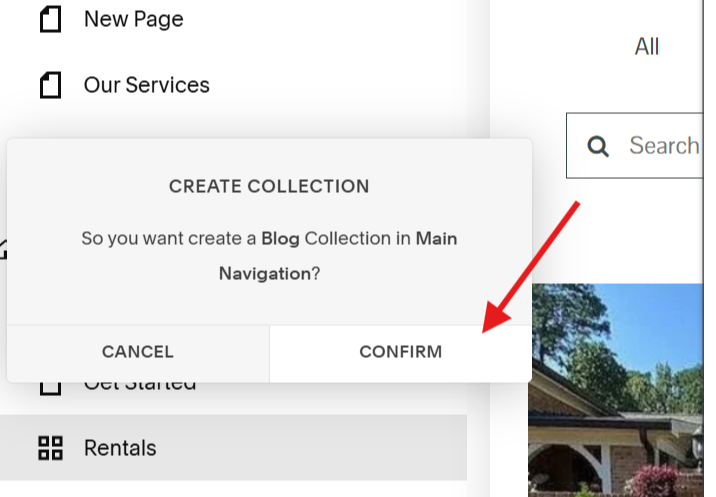
Click confirm and wait for the Extension Tool to finish.
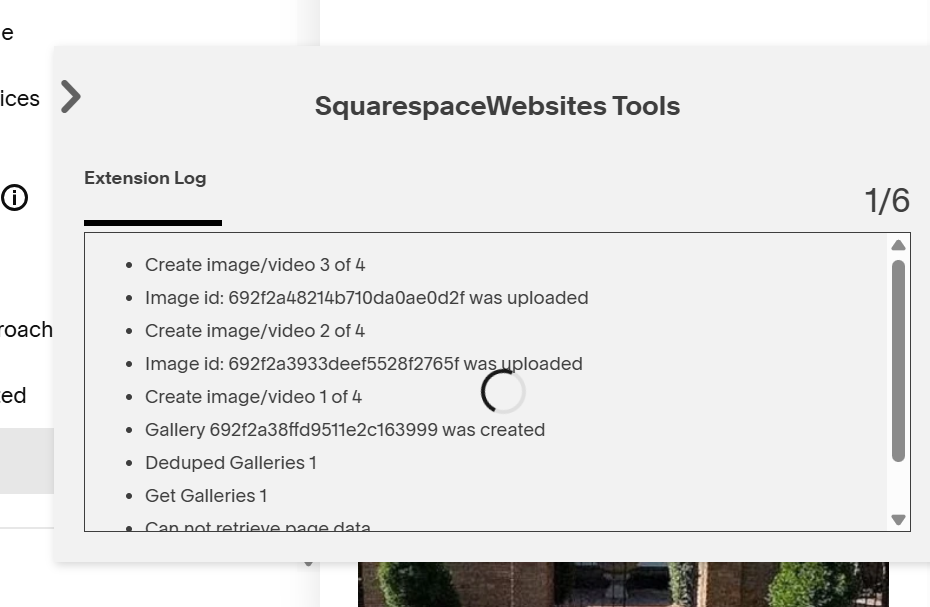
Page(s) are still missing?
This happens sometimes, especially with slow or intermittent internet connection.
But as long as you have the data, you just repeat the process for until all the pages you need are copied completely.
What Squarespace version does this work on?
- 7.0 to 7.0 sites: Yes
- 7.0 to 7.1 sites: Yes
- 7.1 to 7.1 sites: Yes
- 7.1 to 7.0 sites: Not possible
That didn’t worked?
Send us a message. Tell us what pages aren’t copied and we’ll fix it.