Copy Store Pages using Extension Tool
How to copy product collections and shop pages using the Chrome Extension Tool
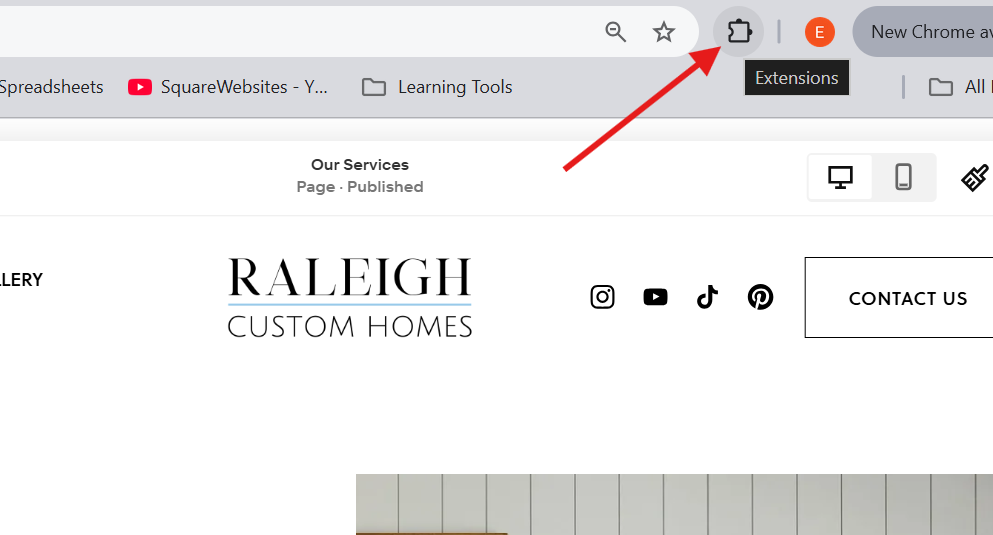
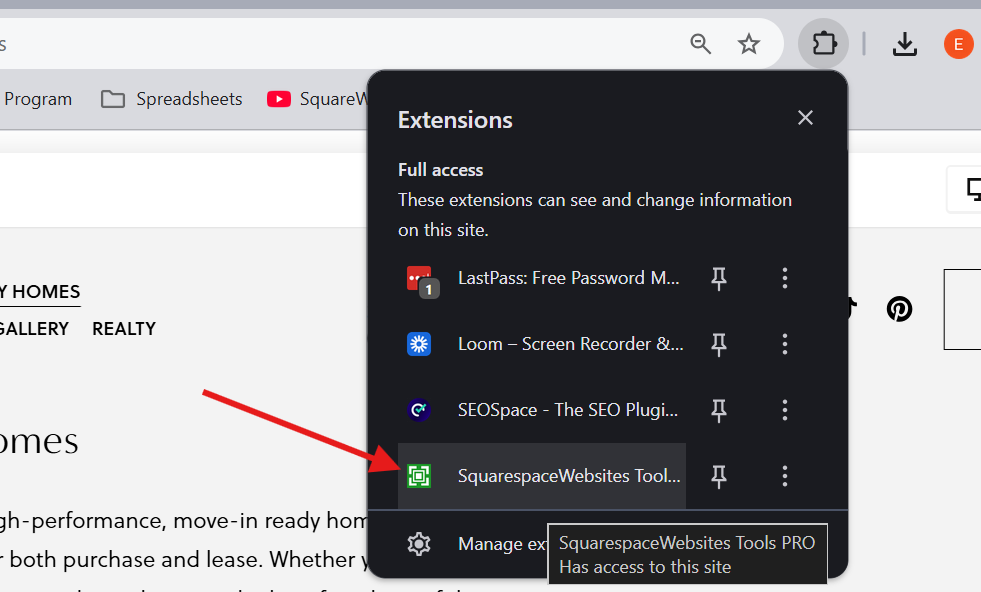
Step 1. Turn on the Extension Tool
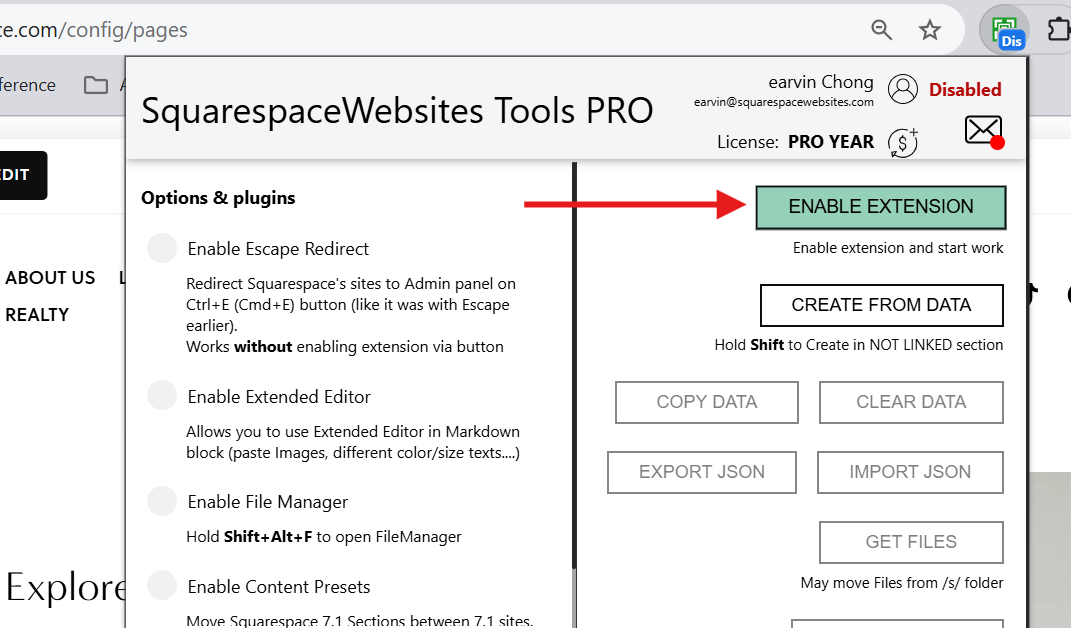
Sign in and turn on the Extension Tool by clicking the ENABLE EXTENSION button.
Step 2. Copy the Shop Page
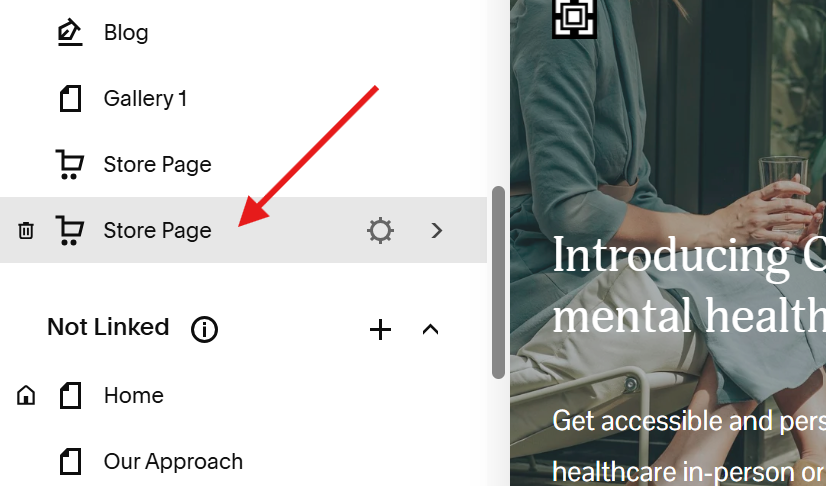
Hover your mouse over the Store page you want to copy and click the Get Collection Data button to copy all the product items in the collection in 1 go.
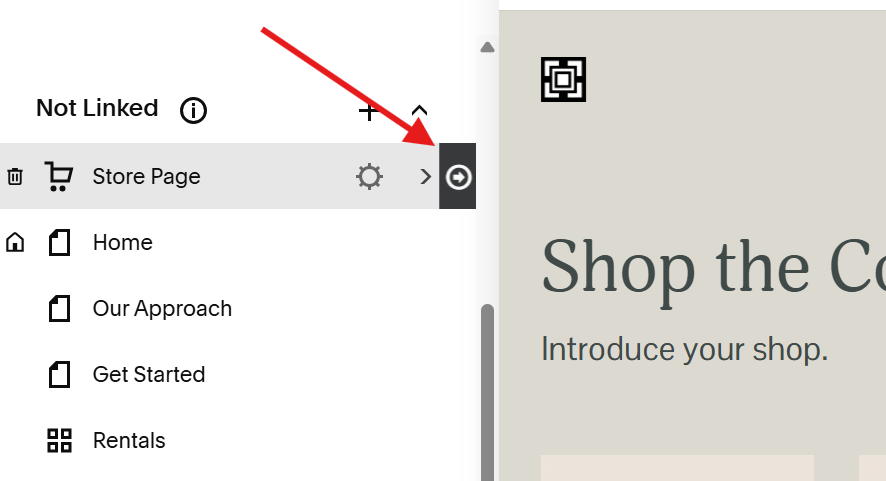
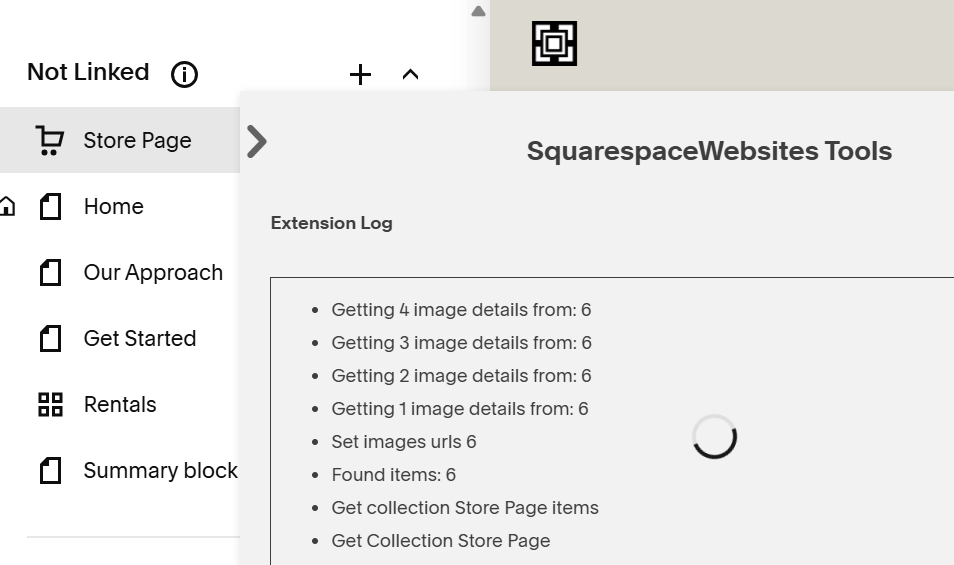
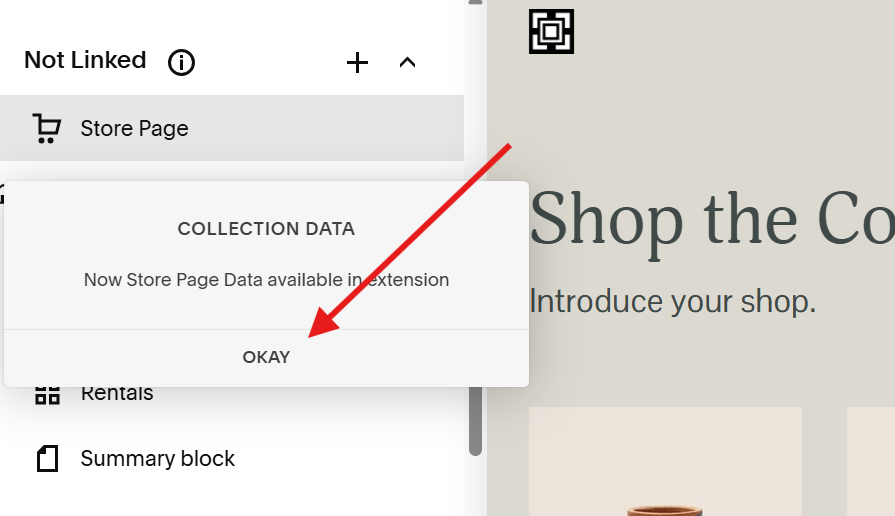
You should see a pop up message confirming that the product collection’s data has been successfully copied.
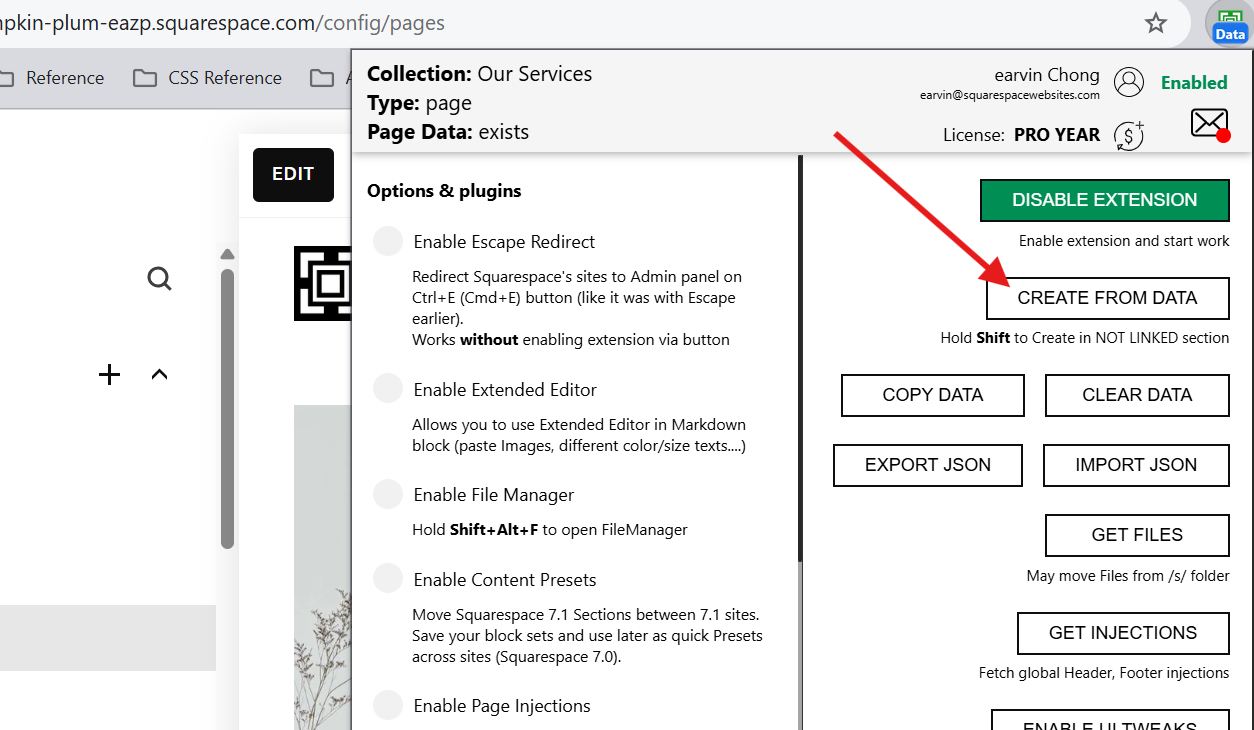
Step 3. Click CREATE FROM DATA button
Go to the site where you want to recreate the page, open the Extension Tool and click the CREATE FROM DATA button.
If you want the copied page in the Not Linked section, press Shift on your keyboard before clicking CREATE FROM DATA.
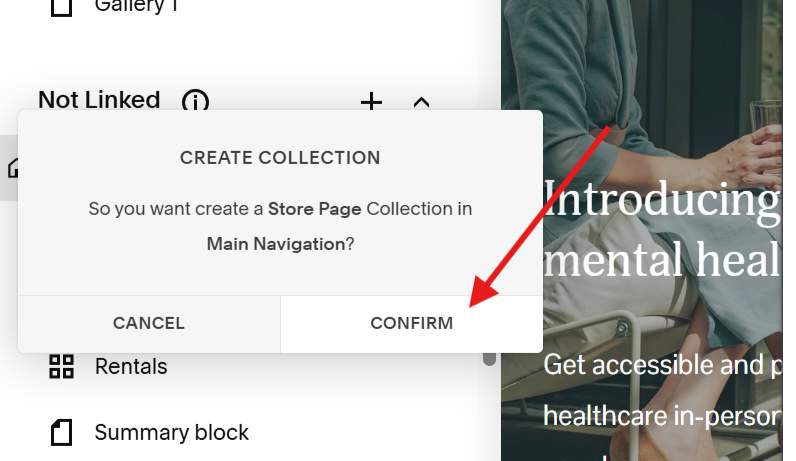
Step 4. Confirm and wait
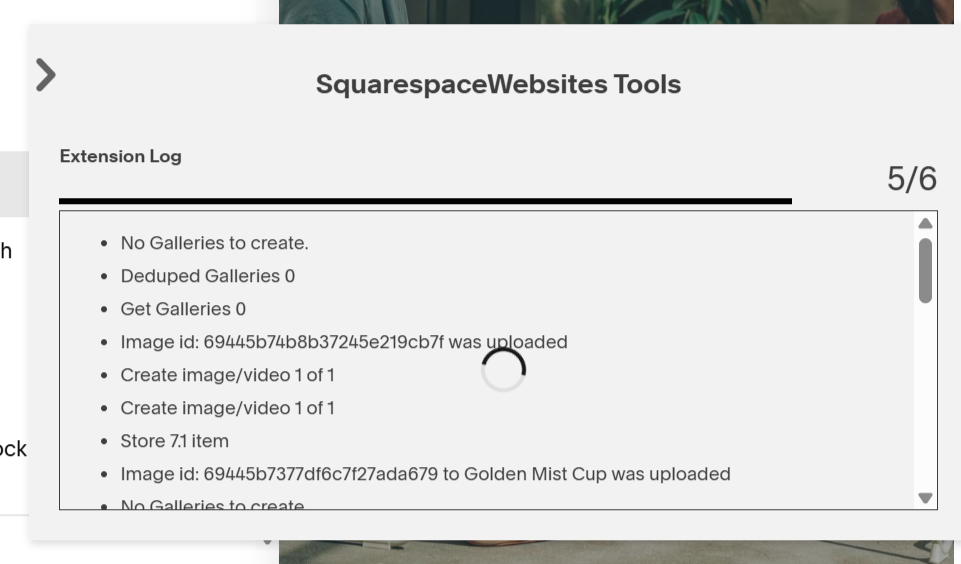
Confirm creating the blog collection and wait for the Extension Tool to finish.
What Squarespace version does this work on?
Can you copy blog pages from:
- 7.0 to 7.0 sites: Yes
- 7.0 to 7.1 sites: Yes
- 7.1 to 7.1 sites: Yes
- 7.1 to 7.0 sites: Not possible
Need Help?
Send us a message. Tell us what you need and we’ll help you find the solution.