Fix Missing Map Pins
How to make your map location’s address stick in blog settings and fix missing map pins
TL;DR:
Re-enter the address in the Location setting or pick the address in the Google map auto-suggests and make sure you see the pin on the map before saving.
The missing map locations is directly located to the map pins in the blog page’s Location settings.
Why?
The Location setting tells the Advance Map plugin where to place the map pin/marker. Most important is the coordinates of an map entry, this comes from the pin. And a visible pin means the address is found and the coordinates are identified.

So if you don’t see a pin, it means your address is not found, no coordinates to feed the map plugin, thus, map entry is not created.
This can happen if you copy/paste an address to the Location settings because (1) the address is wrong, (2) format is different or (3) server time-out which results to a missing map pin.
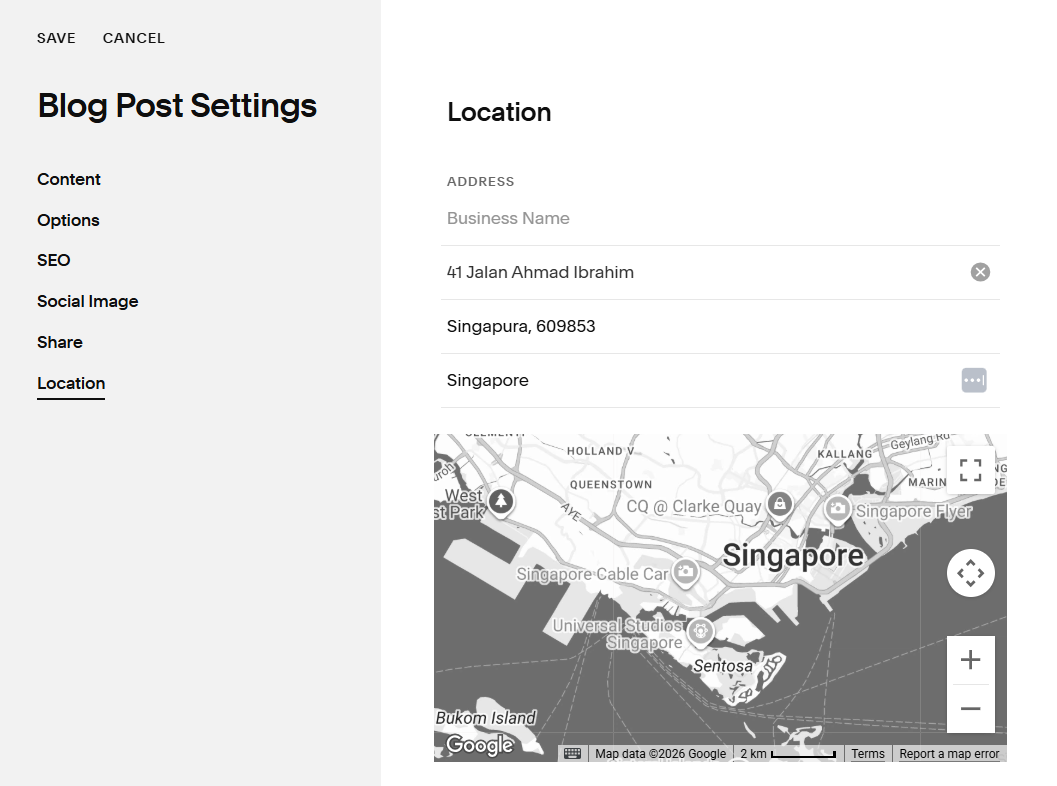
How to fix it?
We have to re-enter the address and make sure the pin shows up on the map before saving.
Step 1. Open Location Settings
Open the Location setting of the missing map entry.
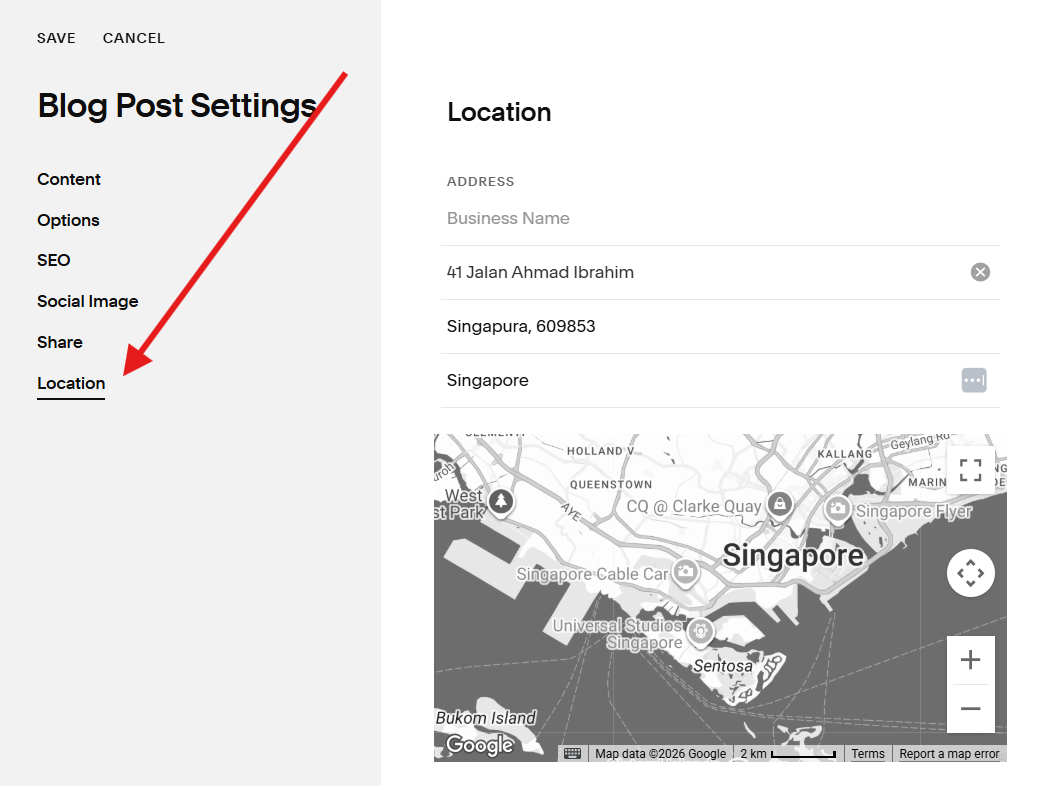
Step 2. Add the address again
Re-enter the address and use the auto-suggest to avoid the address format error because addresses may differ in format depending on your region — some address are translated.
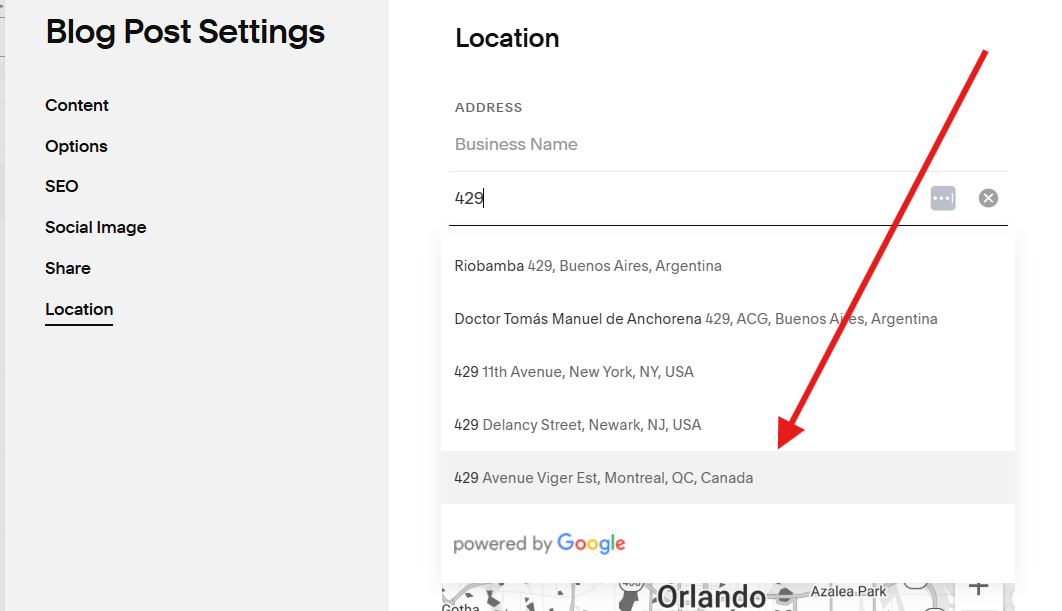
Step 3. Pin and Save
Make sure you see the map pin this time before saving.
Still not fixed?
Let us know and we’ll it fix for you.