Change Map Style
How to change or customize the style of the map block
The Advance Map plugin offers 2 options to change your map’s style. You can use: (1) Predefined Styles or if you want custom styles, you can use map styles from (2) Snazzy Maps.
What’s in this Tutorial:
1. Use Predefined Styles
2. Use Custom Styles
1. Use Predefined Styles
Here’s a quick video of how to change map style using the
Step 1. Open Map Design settings
Open the map block settings and click the Design tab.
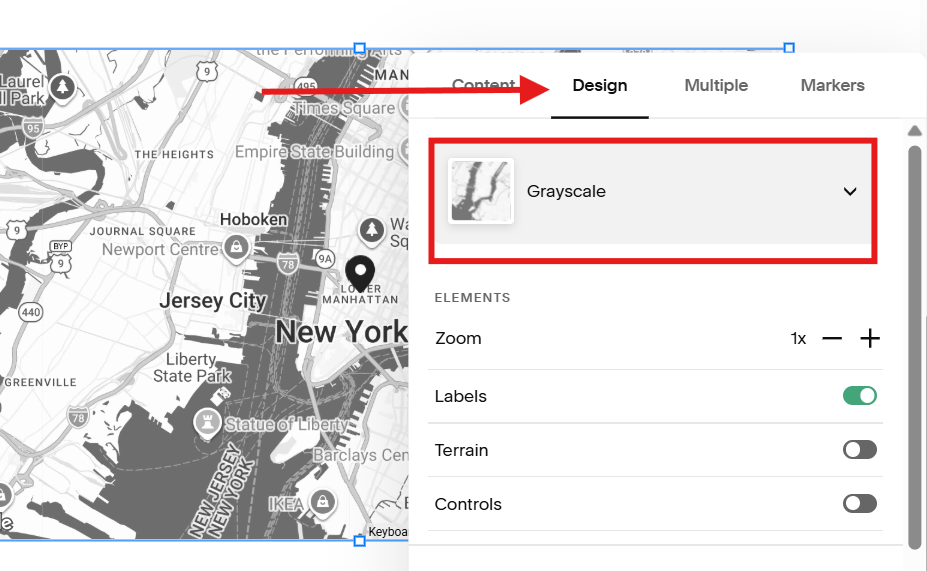
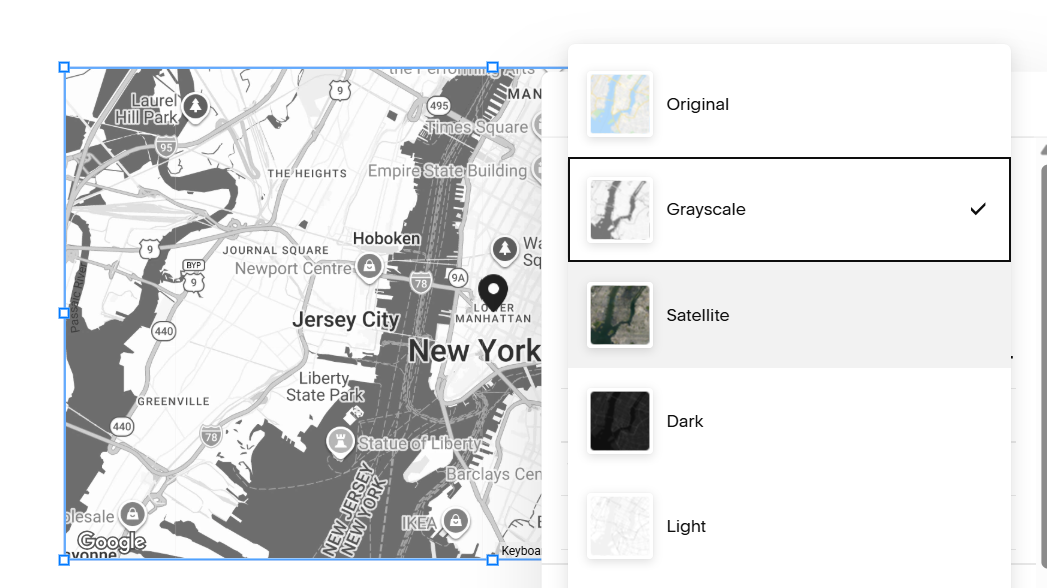
Step 2. Select a Map Style
Pick a style you like from the list of predefined map styles.
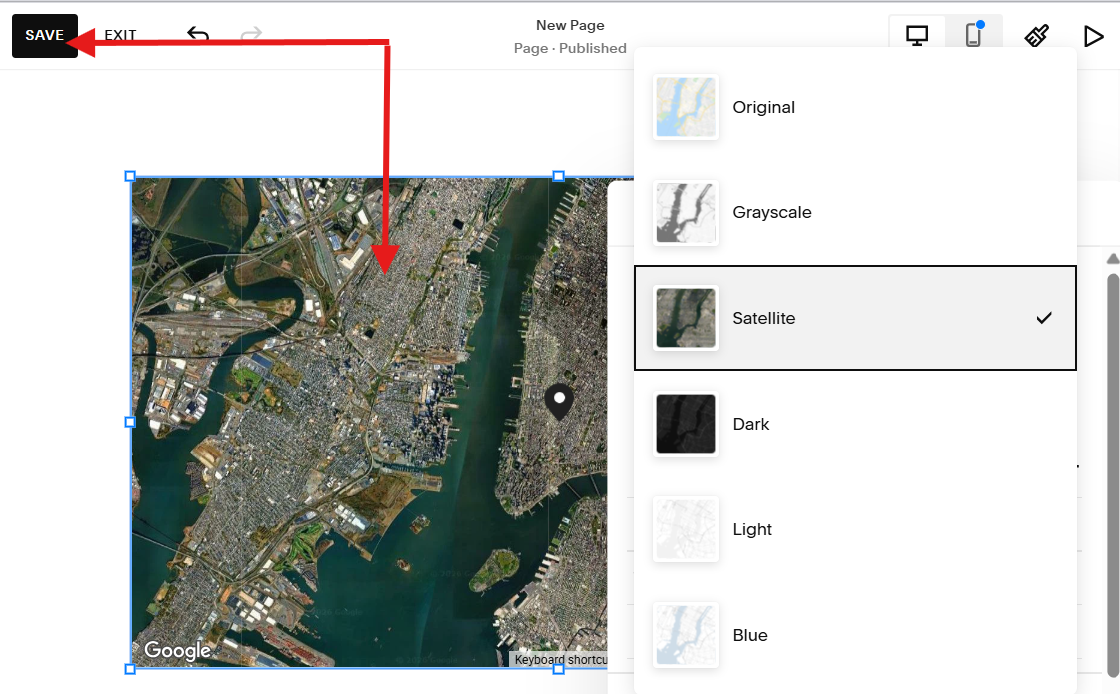
Step 3. Save
Wait for your map style to change and click SAVE.
2. Use Custom Styles
If you haven’t found the style you like from the predefined styles, you can use styles from Snazzy Maps.
Here’s a quick video of how to change map style using the Advance Map plugin.
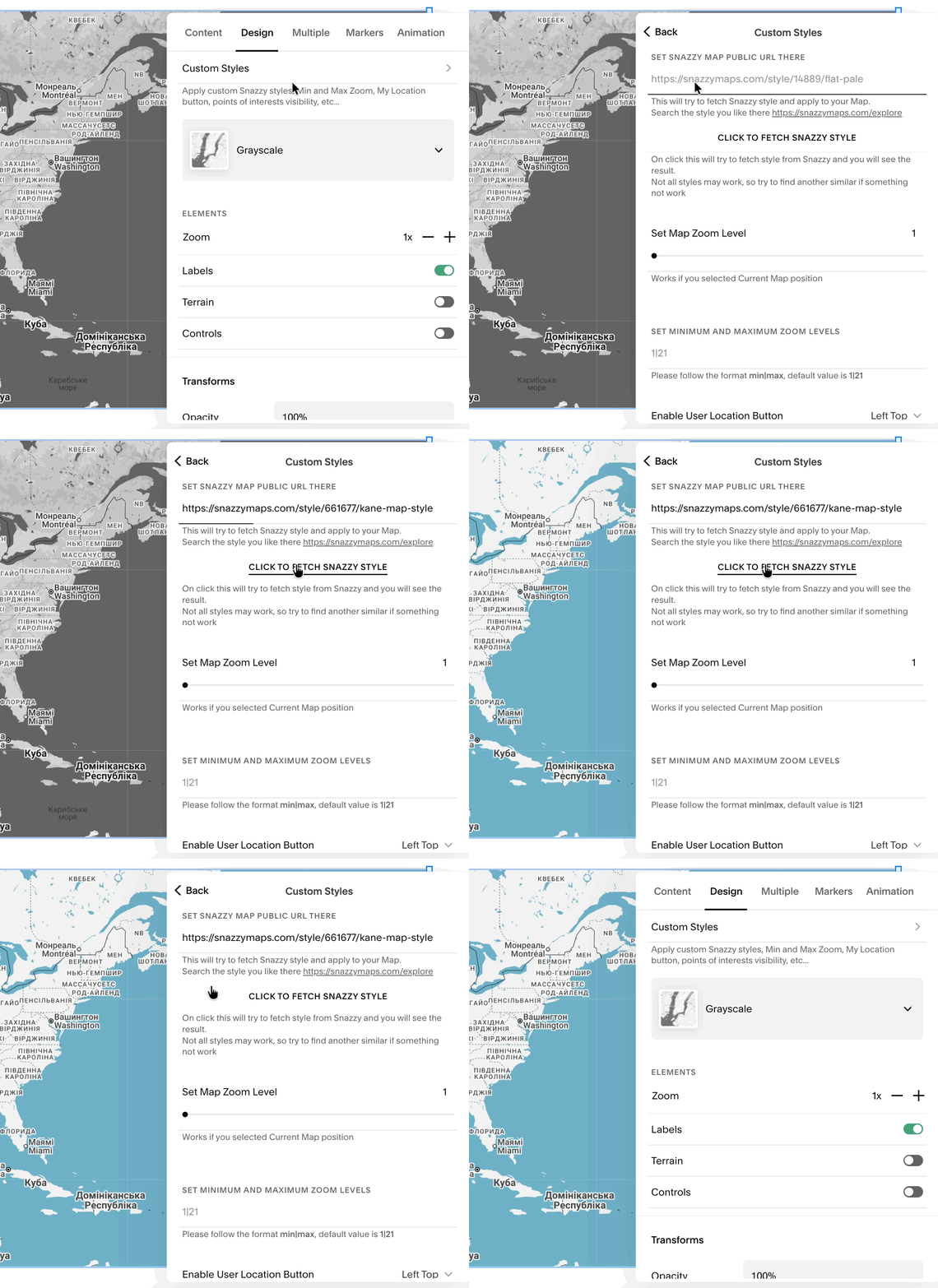
If you need more instructions, read below.
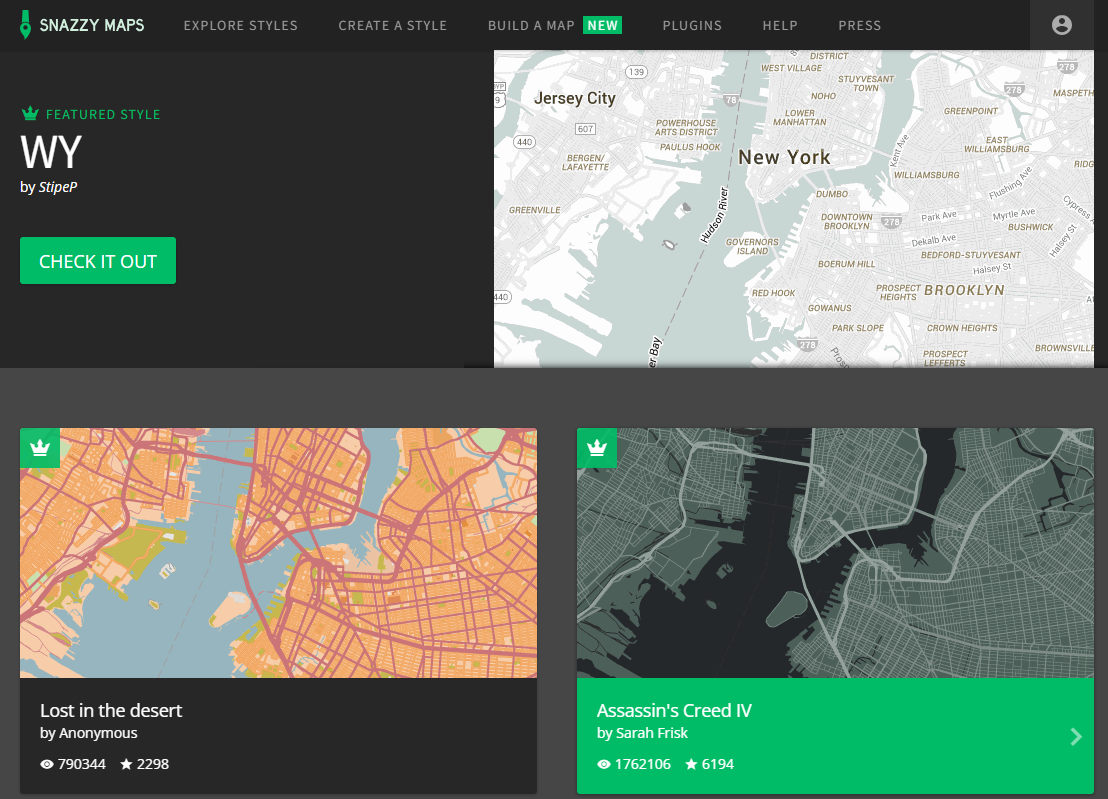
Step 1. Open Snazzy Maps
Go to Snazzy Maps website, pick a map style you like and click it.
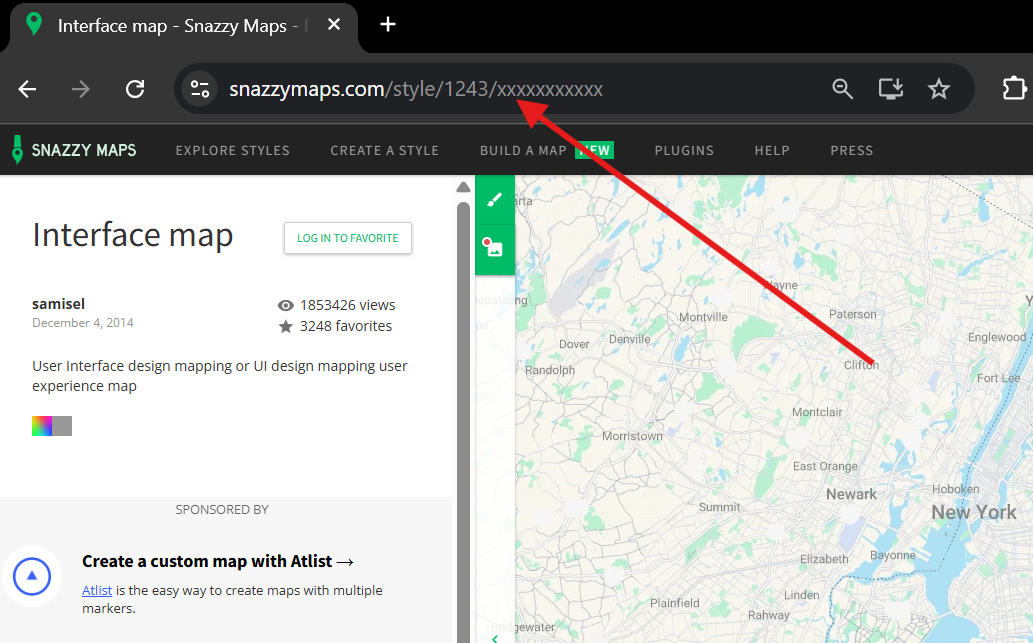
Step 2. Copy Map Link
Copy the link of the map from the address bar.
This link will be used to tell the map plugin which snazzy map style to use.
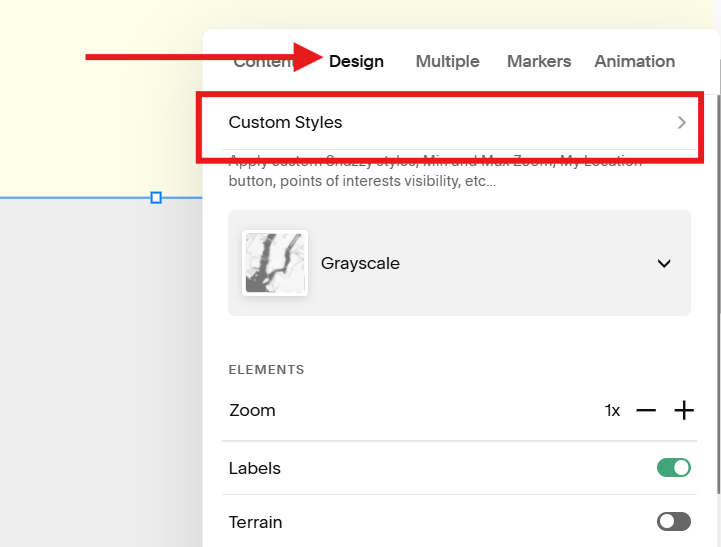
Step 3. Open Custom Style settings
Open the Design tab and click the Custom Styles settings.
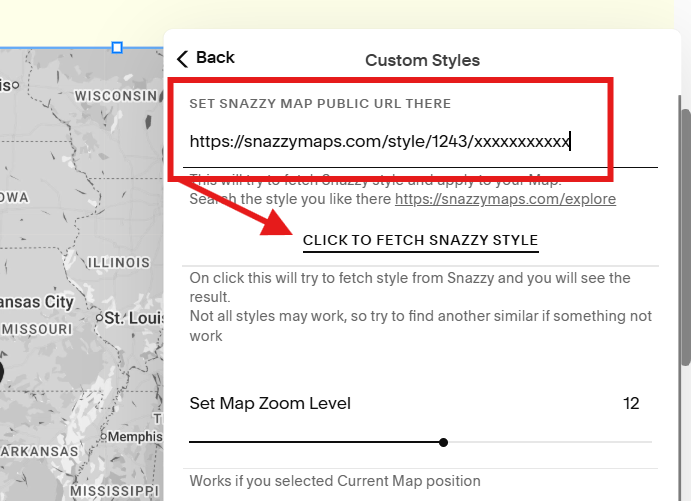
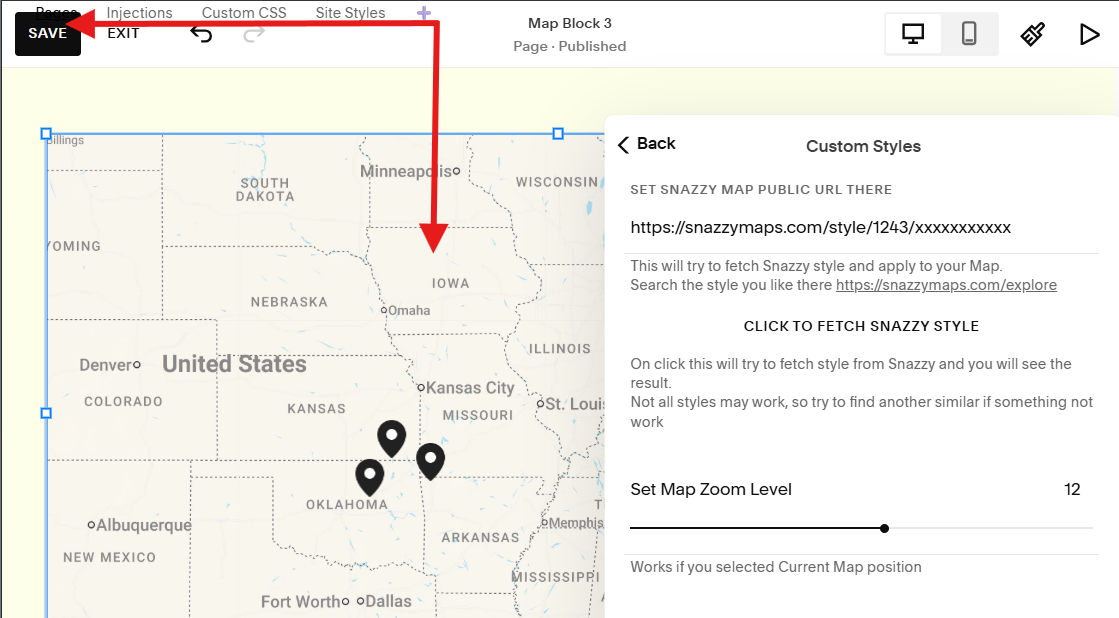
Step 4. Paste Snazzy Map Link
Paste the link on the SET SNAZZY MAP PUBLIC URL THERE space.
Then click CLICK TO FETCH SNAZZY STYLE button to load your custom map style.
Step 5. Save
Wait for your map style to change and click SAVE.
Custom map style not working?
Let us know and we’ll get it fixed.