Adding Background Videos
How to add videos for the Background Video Utils plugin
Step 1. Open Section Settings
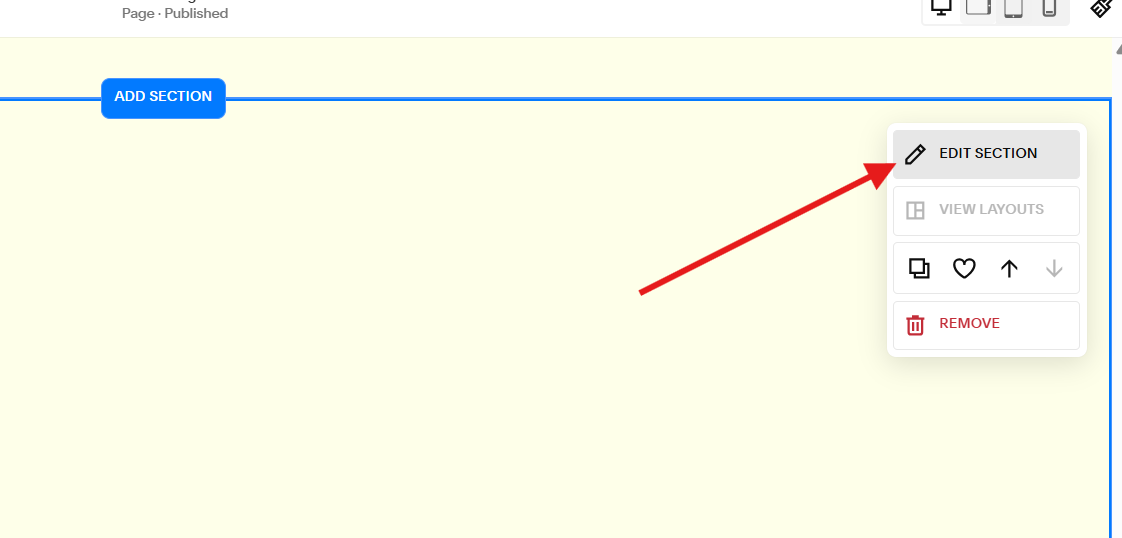
Click the section you want to add background video to and click the EDIT SECTION button.
Step 2. Open Background Settings
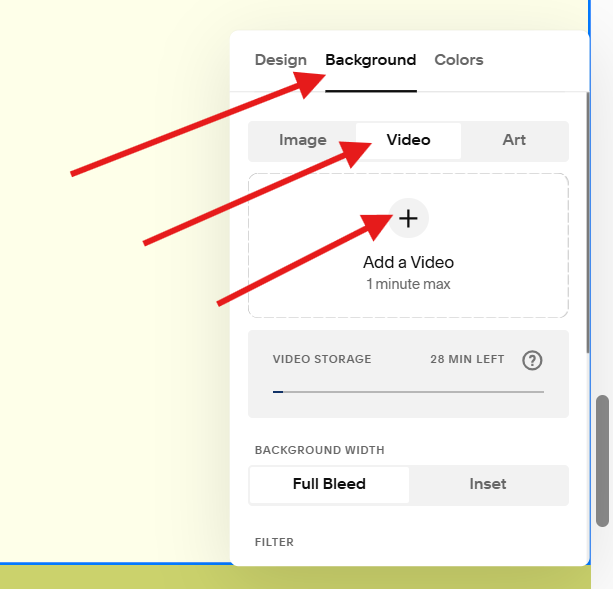
Click the Background tab, click Video settings then click the Add a Video button.
Step 3. Add Your Video
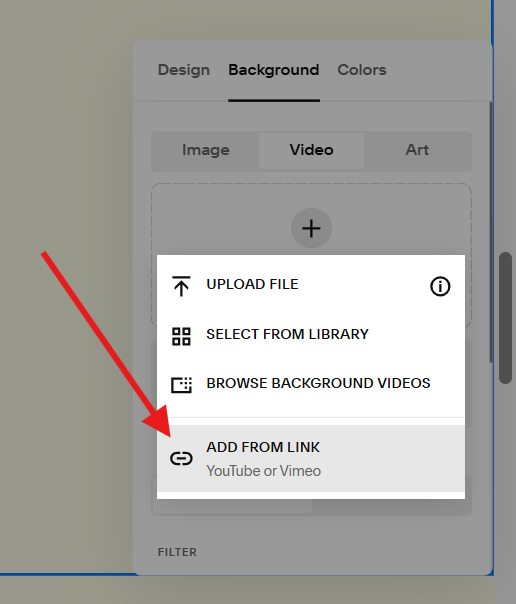
Click ADD FROM LINK and paste the link of your YouTube or Vimeo video.
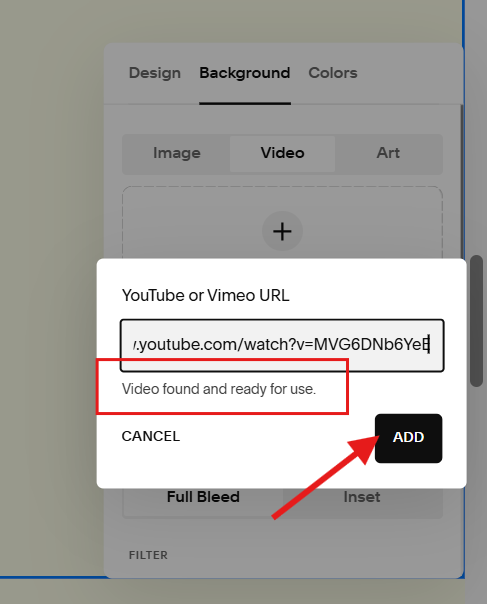
Wait for the Video found and ready for use. message to confirm that you’re video is ready before clicking ADD.
Step 4. Save
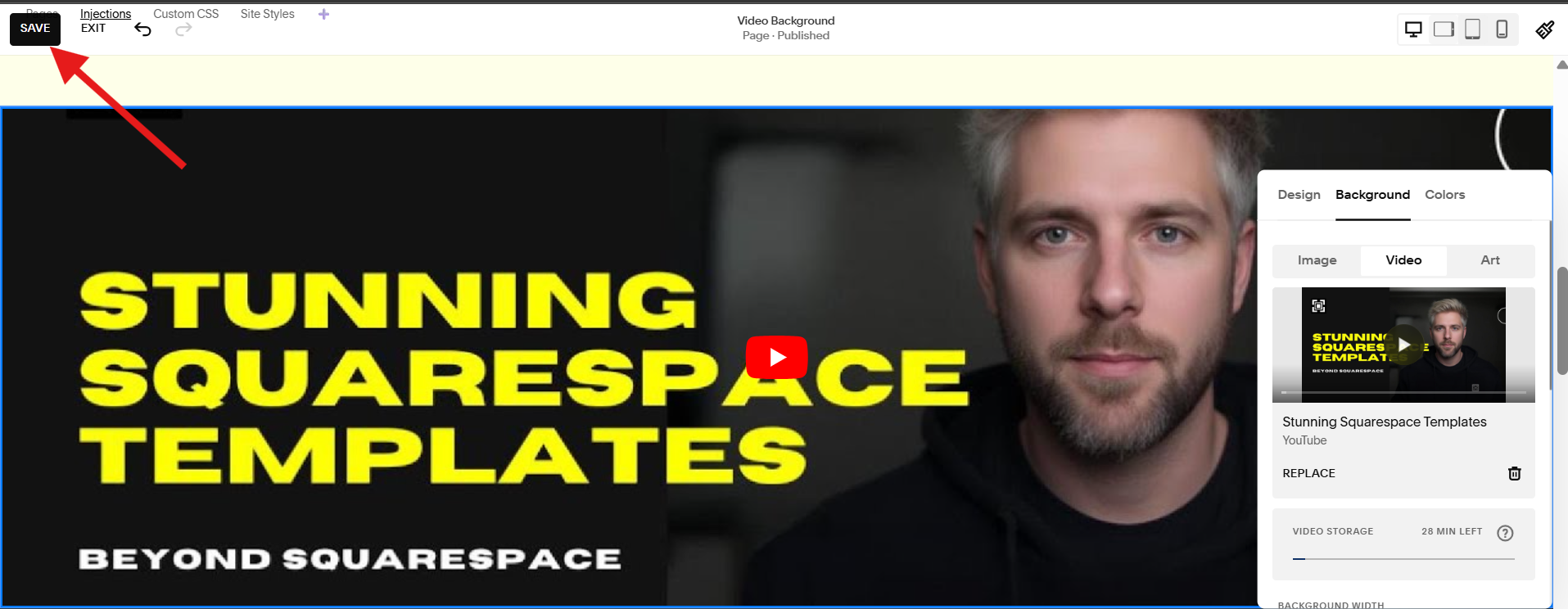
Wait for the thumbnail of your video to appear then click the SAVE button on the top left corner of the screen to save your background video on the page.
What’s Next?
Open your page on an incognito (or just a new window) and test your background video if it stops when you scroll past it.
If it doesn’t, tell us about it and we’ll help you get it working.