Installing Background Video Utils
How to Install Background Video Utils plugin on Your Squarespace Site 7.1 and 7.0
Step 1. Open Website Pages
Click Website from the Squarespace top menu (the menu you immediately see when you open your Squarespace site).

Step 2. Open Code Injection
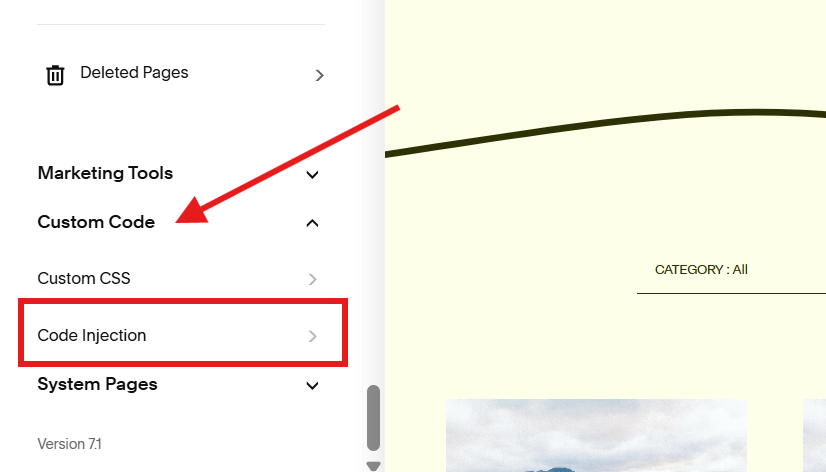
Scroll down to the bottom and click Custom Code from left side panel menu. Then click Code Injection
Step 3. Paste code on Footer
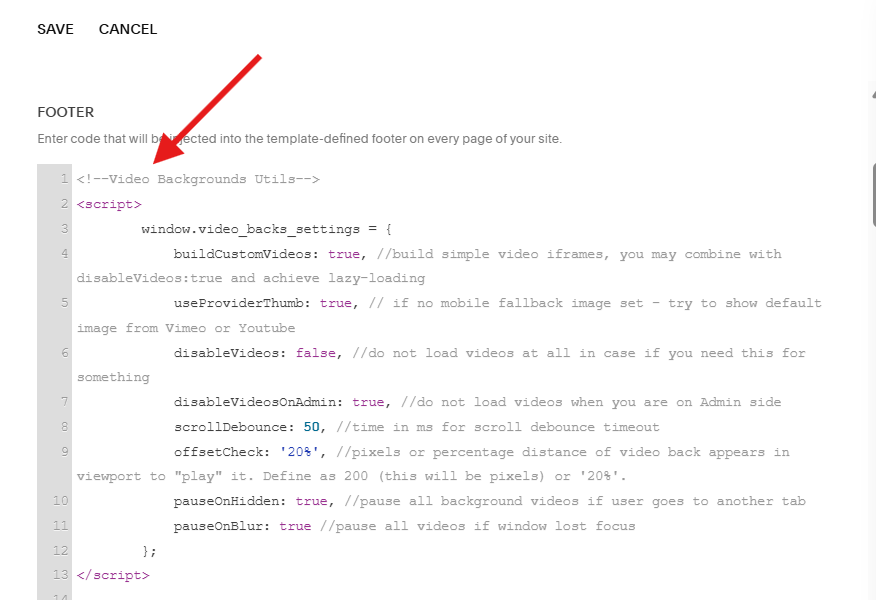
Scroll down to the Footer and paste the installation code.
Where to find the installation code?
The code is in the .txt file from the email you received when you purchased the Background Video Utils plugin.
Haven’t received the email with the code?
No worries, we’ll resend the email and the code to you. Email us.
Step 4. Save
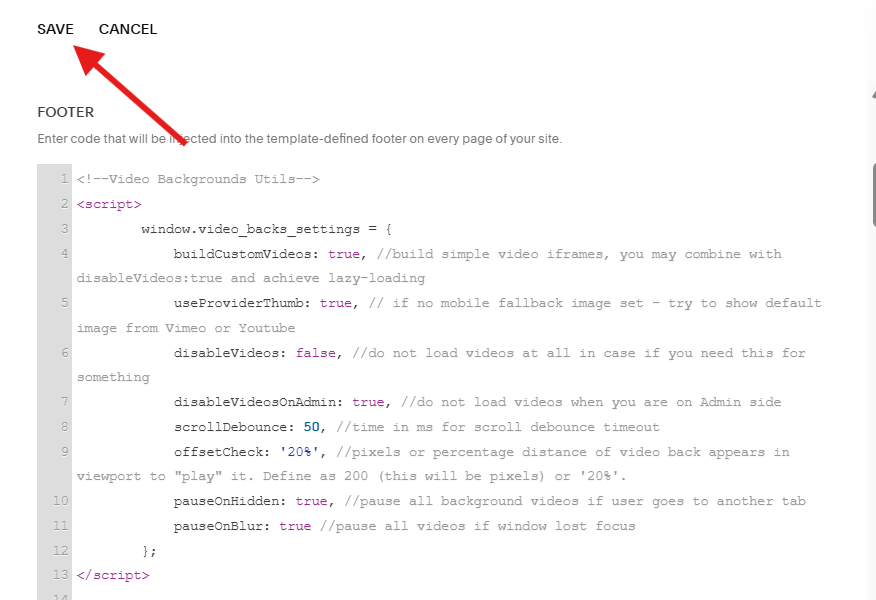
Click the SAVE button on the top left corner of the screen to finish the installation process.
What’s Next?
Add your video as background to the section you want. Here’s a tutorial on how to add background videos.
Skip this tutorial if you already added your background video, the plugin automatically takes effect once installed.