
 Image 1 of 5
 Image 2 of 5
 Image 3 of 5
 Image 4 of 5
 Image 5 of 5
What does Lazy Summary plugin look like on a summary block?
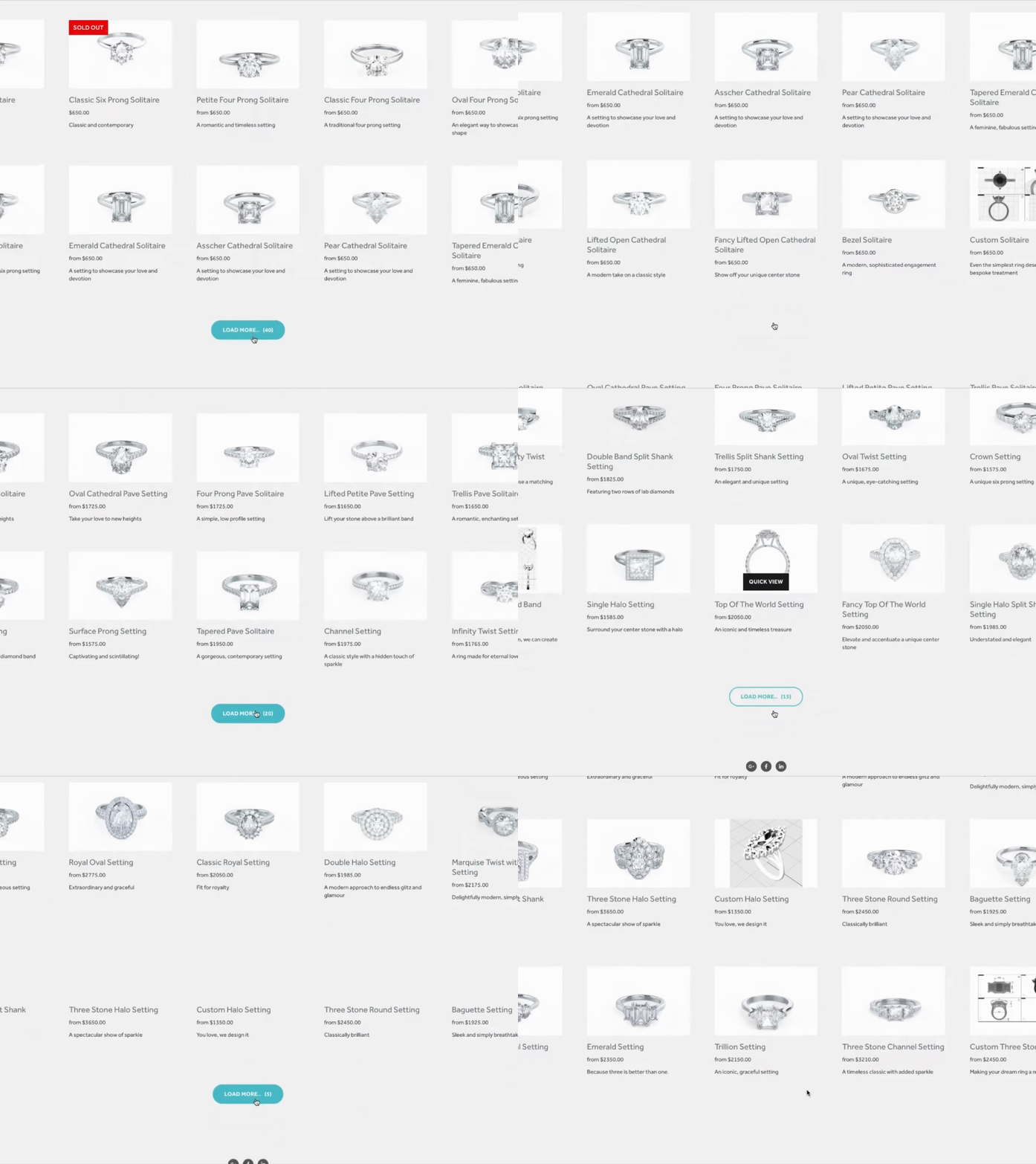
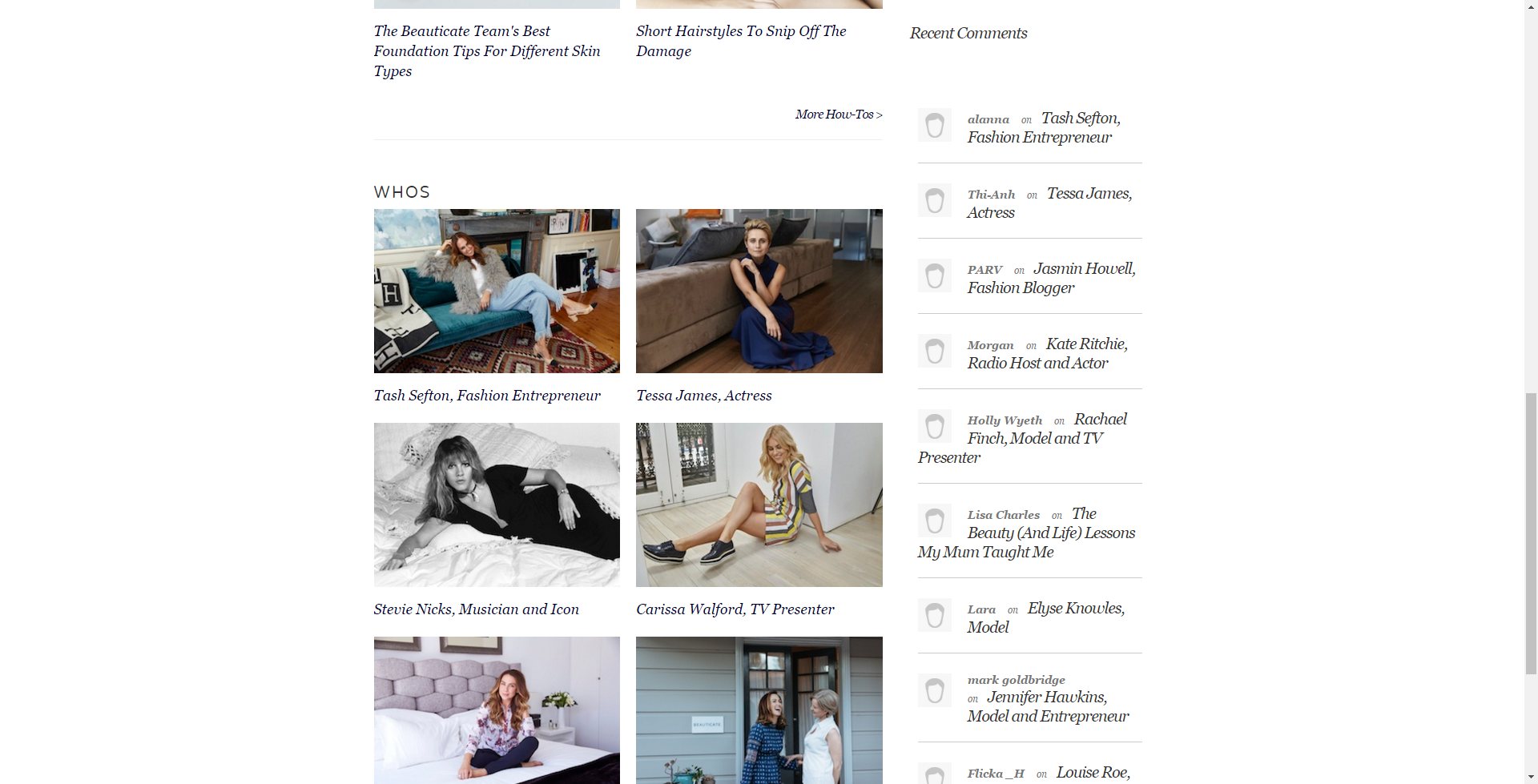
See for yourself. Below is a summary block extended to display 87 items using the Lazy Summary plugin.
Lazy Summary Plugin Demo


What You Need to Know
-
Platform Compatibility: Lazy Summary plugin works on Squarespace 7.0 and 7.1.
Subscription Plan: It works on Business and Personal plans
Price: One time fee of $55 USD
Free in SquareTools Extension ProSupport: Customer support is included
-
Lazy Summary plugin only works on summary blocks. And you can use it to display these collections types:
Products
Blogs
Events
Portfolio
Multiple Blogs (using Sync Collections)
Custom Collections (using JSON files)
It does NOT work on other block types. But you can use it on as many summary blocks as you want on your Squarespace site.
-
Lazy Summary ONLY works on summary blocks
It can NOT display ALL past events but can show up to 60 past events
It does NOT work on password-protected collections
It does NOT automatically work on collections inside a folder — you have to take your blog or store out of the folder first, select it in summary block settings, and place it back inside the folder
-
You can use lazy summary with ZERO coding knowledge. There is NO coding involved in installing the plugin.
You just need to copy/paste the installation code once to activate and load the lazy summary interface to your summary block settings.
-
You just need to copy/paste the installation code once to activate and load the lazy summary interface to your summary block settings.
The installation code will be emailed to you when you purchase a lazy summary license
And you can find installation and setup instructions in this guide.
If you need help with installing or setting up, contact us and we’ll get you sorted.
-
Customer support is included in the one-time fee you paid.
If you need help, ran into an issue, or have any questions, contact us.
What else can Lazy Summary do?
1. Sort Items
Sort your summary block items by name, last name, title, author, date, price or even number of likes.
2. Lightboxes
Display your images on lightboxes when clicked.
3. Clickthrough’s
Open your links on a new tab when people click the title so your page stays open.
4. Alter Images
Show an alternate image when people hover your summary block items (only works with products).
5. Size and Spacing
Customize the size and spacing of summary block’s grids and columns.
6. Target Styling
Imagine using different font style, color or size on your summary block items based on their tags and categories.
7. Customize Excerpt
Custom style your excerpt (even add animations) by allowing HTML.
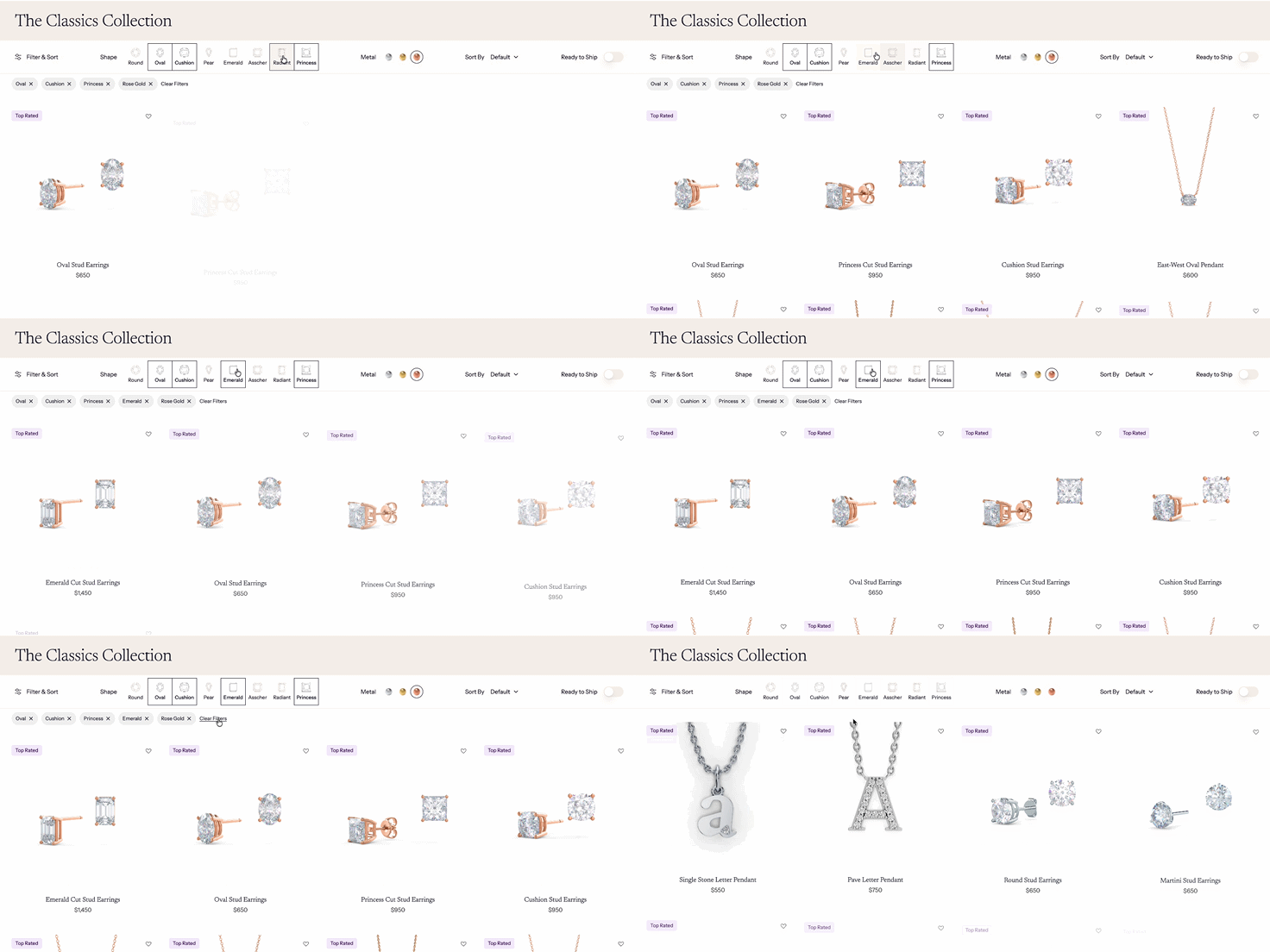
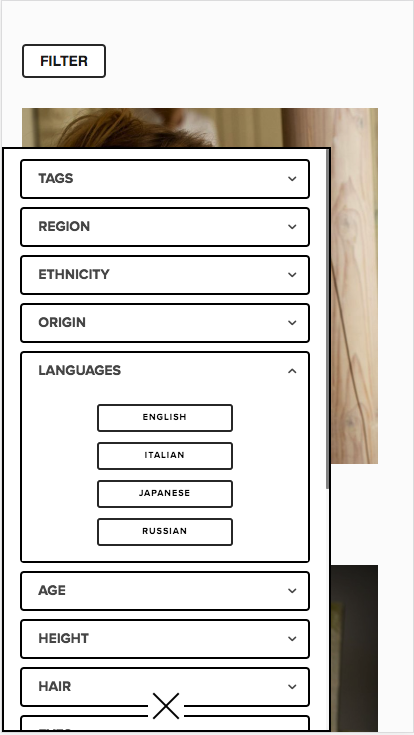
8. Filter Items
Filter summary block items using multiple tags or categories, (or combination of tags and categories) unlike summary block’s default filter option which only lets you pick 1.
Lazy Summary Settings
Lazy Summary Additional Settings
Lazy Summary Sizes & Spacings
Advance Settings
Can you change Load More button styling?
Yes, you can change the Load More button styling with CSS.
For example:
.sqs-block-summary-v2 .loadMoreButton{
    font-family: 'Arial';
    font-size: 24px;
    color: white;
    background-color: black;
    border: 1px solid white;
}
We’re using the CSS pseudo element :after to display the items count. If you use this CSS selector, you can customize or hide the count.
For example:
.sqs-block-summary-v2 .loadMoreButton:after {
    content: "("attr(data-items-left)")";/*attr data-items-left refreshing each time you click*/
    font-size: 24px;  /*change font size to 24px*/
}
Can you customize how Lazy Summaries works?
Yes, Lazy Summaries plugin has a hooks system you can use for your own coding. This lets you seamlessly integrate your custom code to the Lazy Summaries code.
Here’s the list of the available hooks you can use:
<script>
window.customLazySummaries = {
    general: { //runs for all summary blocks
        startFunction: function(sum_block, jsonData) {
            //runs just when summary started, you do not need return smth

        },
        startRenderFunction: function(sum_block, jsonData) {
            //runs just when summary started/sorted and before request new items

        },
        startItemsFunction: function(item, jsonData) {
            //runs for each existed(start) summary item
        },
        transformExternalDataFunction: function(data, jsonData) {
            //collections json received and you may transform idata there
            //need return transformed data json, jsonData is summary config object

        },
        jsonTransformFunction: function(items, jsonData) {
            //collections json received and you may transform items json there
            //need return transformed items json, jsonData is summary config object

        },
        renderItemDataFunction: function(item, jsonData) {
            //you may do transformation on rendered summary-item node and return it,
            // it also runs for existing summary items

        },
        afterRenderItemFunction: function(item, jsonData) {
            //you may do transformation on rendered summary-item node and return it,
            // it also runs for existing summary items

        },
        allItemsRenderedFunction: function(new_items, jsonData) {
            //access all new loaded items there, you may transform and return them
        },
        portionItemsAddedFunction: function(sum_block, jsonData) {
            //runs after portion of items appended to summary block
        },
        allItemsAddedFunction: function(sum_block, jsonData) {
            //runs after all of loaded items appended to summary block
        },
        refreshFunction: function(sum_block, jsonData) {
            //runs after refresh summary block (appending items, sorting..)
        }
    },
    separate: [ //run for separate summaries, based on id attribute
        {
            id: 'block-yui_3_17_2_1_1579508745168_4942',
            startFunction: function(sum_block, jsonData) {
                console.log(sum_block);
            },
            //set summary ids there
            afterRenderItemFunction: function(item, jsonData) {
                console.log(item);

            }
        }
    ],
    related: [{//used to build Related Summaries
        container: '.collection-type-blog',
        //remoteSummary: '/remote-summary',
        placeTo: '.Main-content',
        summarySettings: {
            design: "autogrid",
            imageAspectRatio: 1,
            hideLoadMore: true,
            textSize: "small",
            metadataPosition: "above-title",
            primaryMetadata: "cats",
            secondaryMetadata: "none"
        },
        filter: {
            tag: true,
            category: false,
            featured: false
        }
    }]
};
</script>
Frequently Asked Questions
-
Yes, you can use the Lazy Summary on multiple pages. It works simultaneously on multiple summary blocks in 1 page or across multiple pages.
-
No, Lazy Summary only works on summary blocks. It does not work on any other content block or pages.
-
No, the Lazy Summary does not work with the masonry layout, simple and basic grids only.
-
Copy the Lazy Summary installation code
Go to Code Injection > Footer Injection and paste the code.
Save.
After saving the code, lazy summary plugin will automatically setup.
You’ll know you successfully installed lazy summary when you find additional tabs in your Summary Block Settings.
What’s next?
Turn on Lazy Summary by toggling the button in the Lazy Settings tab.
Can’t see Lazy Summary settings?
Try re-opening the summary block settings to refresh the settings window.
If you still can’t see it, contact us and we’ll get it fixed.
-
The Lazy Summary plugin is not a subscription. You only need to pay once per website.
-
The installation code is emailed to you when you purchase Lazy Summary plugin. You’ll find it in the .txt file attached in the email.
If you haven’t received it or can’t find it, let us know and we’ll resend it to you.
-
Although we recommend pasting it in the Code Injection because content blocks are more susceptible to Squarespace changes, yes — Lazy Summary works on personal plan accounts.
Just paste the code on a Markdown block and it’ll work as good as pasting it in the Code Injection.






Tables are not available in Squarespace by default. But using the Custom Table Block plugin you'll be able to create and customize tables on your Squarespace website.
Watch how easy and simple it is to add and customize tables on your Squarespace website in this 1-minute video tutorial.