Saving Images in Squarespace
How to Upload and Host your Images on your Squarespace Website
Step 1. Add New Page
Click the + icon next to the Not Linked section to add a link file.

Step 2. Click Link
Scroll down to the bottom of the menu and click LINK.

Step 3. Change Type to File
Click the URL dropdown and change it to File.

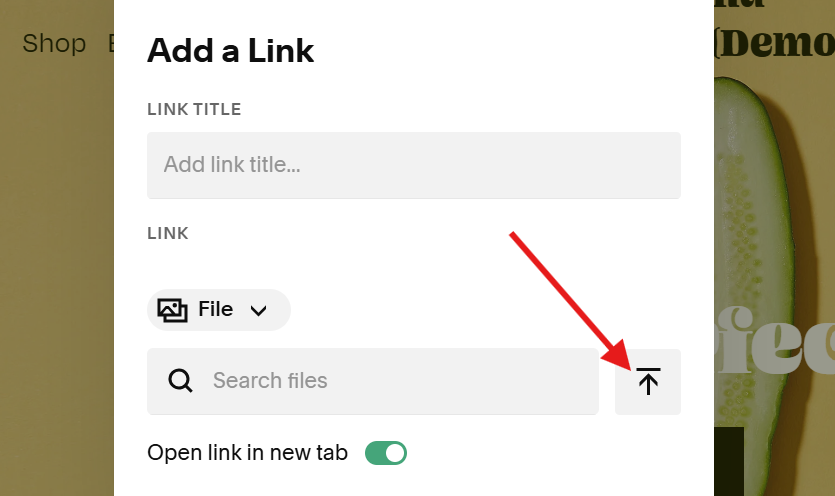
Step 4. Upload Image
Click the button next to the Search files bar and upload your image.
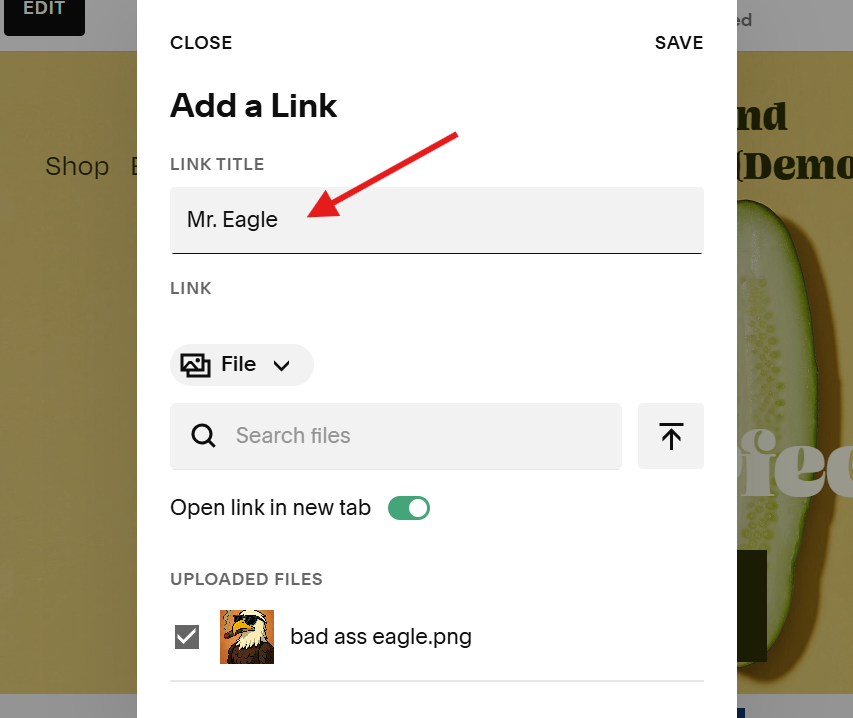
Step 5. Add Link Title
Add your link’s name under the LINK TITLE field.
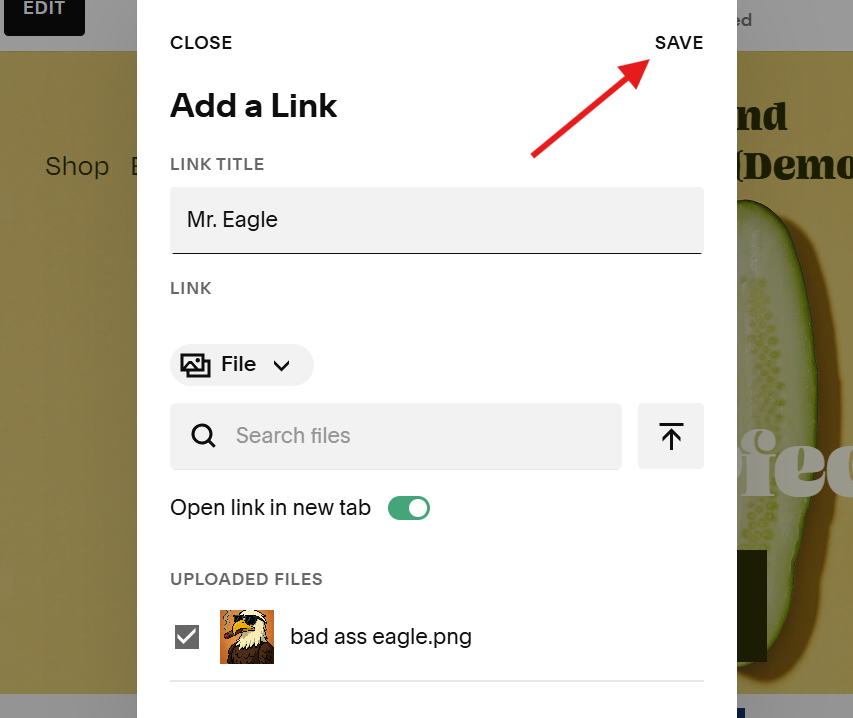
Step 6. Save
Click the SAVE button to save your image.
How to Copy the Link to the Image
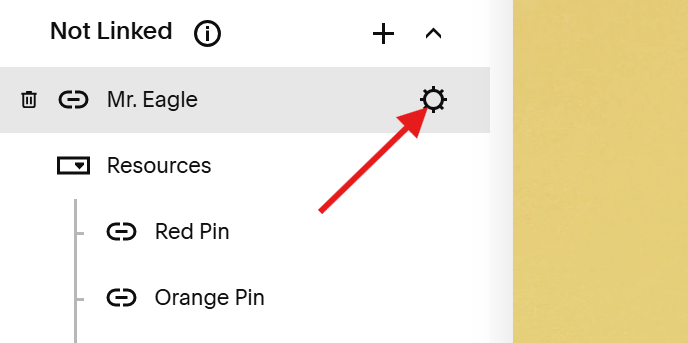
Step 1. Open File Settings
Click the file and click the gear icon ⚙️ to open settings.
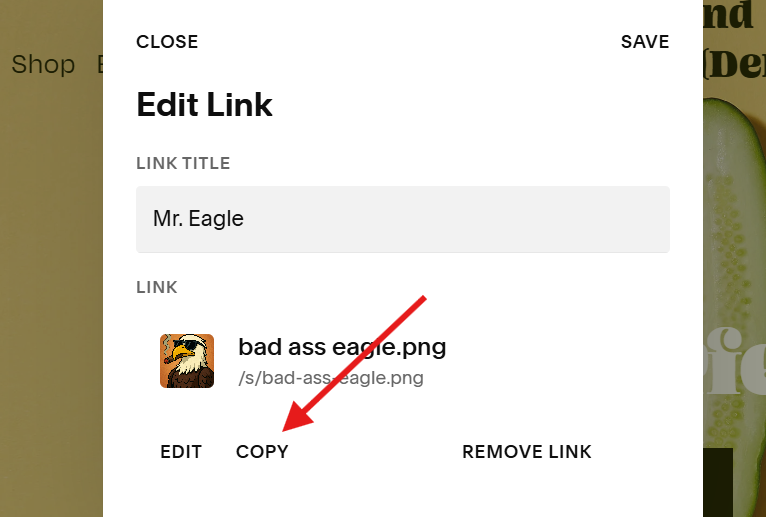
Step 2. Click Copy
Click the COPY button to copy the link. This link will redirect users to the actual folder address.
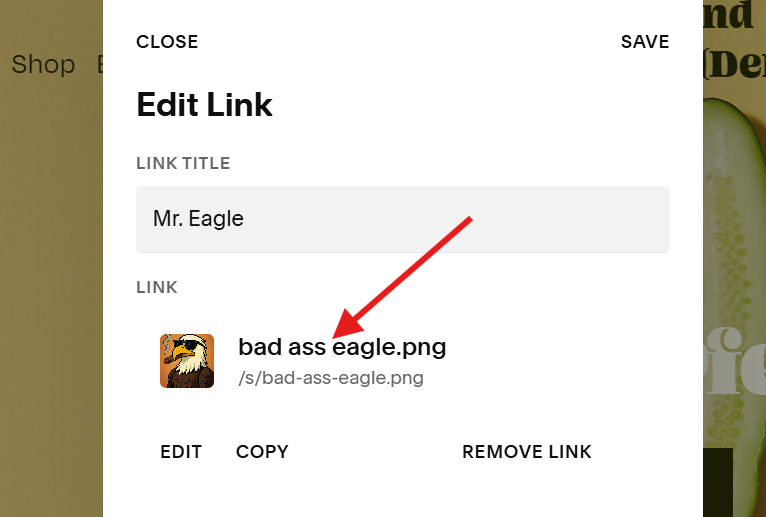
Want to copy the actual folder address?
Click the file name next to the thumbnail.
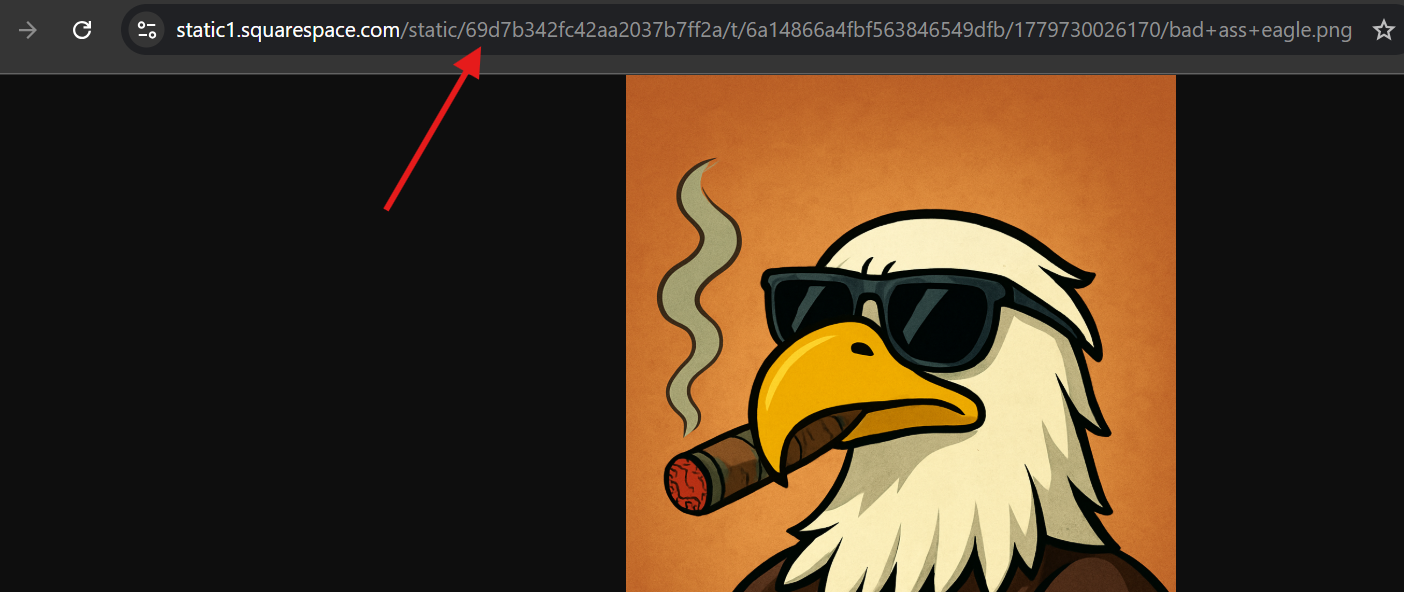
Step 3. Copy Folder Address
Click the file address in the address bar and copy.
Saving Images in Squarespace
Written by Earvin Chong
How to Upload and Host Images on Your Squarespace Website
Use this method when you want Squarespace to host your images and give you a direct, shareable file URL (for custom code, buttons, or external tools).
Step 1. Add a new page
In your site menu, go to the Not Linked section and click the + icon to add a new item.
Step 2. Choose "Link."
From the menu of page types, scroll down andclick on Linkk. This creates a link item that will point to a file instead of a regular URL.
Step 3. Change the link type to "File."
In the link settings, click the URL dropdown and change it to File. This tells Squarespace you want to upload and host a file (like an image) rather than link to a web address.
Step 4. Upload your image
Next to the Search files bar, click the Upload button and select your image from your computer. Once it finishes uploading, Squarespace will store and host it for you.
Step 5. Add a link title
Under Link Title, give this file a clear name so you can recognize it later (for example, “Logo—white PNG” or “Homepage hero image”).
Step 6. Save
Click Save. Your image is now uploaded and hosted on Squarespace, and you can grab a direct URL to use wherever you need it.
How to Copy the Direct Image Link
Step 1. Open file settings
In the navigation, click the link item you just created, then click the gear icon next to it to open Settings.
Step 2. Copy the file link
In the settings window, click the Copy button next to the file URL. This copies a link that will send people straight to the hosted image file.
If you prefer to copy the URL directly from your browser:
Click the file name next to the thumbnail to open it in a new tab.
In that new tab, click once in the address bar and copy the full URL.
You can now paste this image link into code blocks, buttons, external tools, or anywhere else you need a direct image URL.