
Squarespace Filtering: The Complete 2026 Guide
Once a Squarespace site grows past a handful of posts, products, or projects, browsing starts to break down. What felt clean at launch turns into long archive pages, repeated scrolling, and visitors who know what they want but cannot reach it quickly.
Squarespace does offer native filtering in a few places, but it is important to understand what that usually means. In most cases, you are working with category or tag archive pages, basic store filters, and page reloads, not a live filter bar that narrows results in place.
This guide covers how Squarespace filtering works for blogs, events, portfolios, and products, where the native approach stops, and how to add live filtering when your site outgrows it.
The goal is not to push every site toward a plugin. It is to help you choose the lightest setup that still makes browsing feel clear for visitors.
If your site has outgrown native filtering, see what Universal Filter adds.
Why Filtering matters as your site grows
Filtering is really about findability. The more content you publish, the less helpful a simple chronological archive becomes. Visitors stop browsing when every answer depends on scrolling through a mixed list and hoping the right item appears soon.
That matters on content sites because buried posts get read less, older resources disappear, and category pages start doing too much of the organizational work. It matters even more on stores, where browsing friction gets in the way of product discovery and can cut into sales before pricing or product quality ever enter the picture.
The problem also scales unevenly.
A site with twelve posts can get away with broad navigation and a few featured links. A site with eighty posts, thirty shop items, and several portfolio sections needs better ways to narrow choices.
Good filtering does not add content. It helps the content you already have stay usable, easier to discover, and less dependent on homepage promotion.
How Squarespace filtering works natively
Squarespace's native filtering is mostly category and tag archive pages reached by clicking or linking and served via page reloads, not a dynamic, visitor-facing filter bar. That distinction clears up a lot of confusion.
People often mix up filtering with sorting or reordering. Sorting changes the order of items. Filtering narrows the set itself. Native Squarespace does some of both, depending on the page type, but the experience is usually static compared with live in-place filtering.
That is why two sites can both claim to have filtering while delivering very different visitor experiences.
The details also change by collection. Blogs, events, portfolios, and products do not all behave the same way, so it helps to look at each one on its own.
Filtering Blog Pages
Blog pages are the clearest native example. You assign categories and tags to each post, then visitors click those labels to open a filtered archive URL. That works well enough when your goal is simple topic grouping, and it is built into the normal publishing flow.
The tradeoff is how visitors interact with it. Clicking a category or tag loads a new page rather than updating the existing list in place. It is also usually one dimension at a time, so the experience is closer to jumping between archives than using a modern filter interface.
One small detail trips people up: categories and tags attached only to unpublished posts will not show up as available options yet. If you are testing a structure before a post goes live, that can make it seem like the filter is missing when it is really waiting for published content.
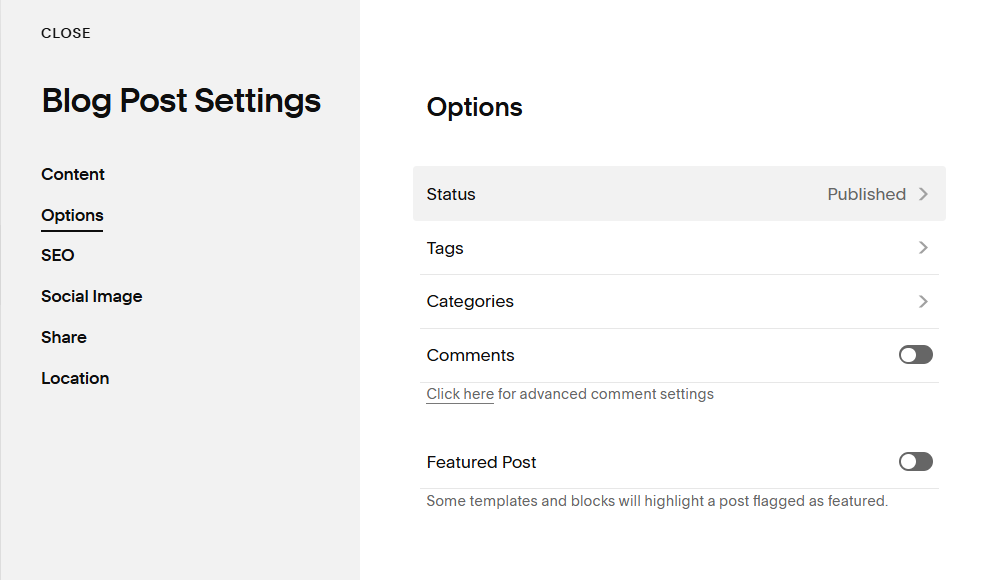
For the native setup, see filter blog posts by category or tag.
Filtering Events Pages
Events pages also support basic category-based organization, and those categories can generate filtered archive URLs much like blog archives. For straightforward calendars or event libraries, that gives you a usable way to separate workshops, launches, webinars, or local events.
The limitation is the same one most site owners run into elsewhere on Squarespace: this is not an interactive filter bar sitting above the list. A visitor clicks into a category view and the page reloads. The page is still doing date-driven event presentation first, filtering second.
There is also no native way to combine category filtering with live text search inside the same event list, so larger event archives get harder to browse as they grow. If your event page doubles as a resource archive after events pass, that limitation shows up even faster.
Filtering Portfolio Pages
Portfolio pages are where native Squarespace filtering feels thinnest. On Squarespace 7.1 in particular, portfolios do not expose category or tag archive filtering the way blogs and events do, and there is no native visitor-facing filter UI to help people narrow projects on the page itself.
That matters because portfolios often need filtering more than blogs do. Designers, photographers, architects, and studios usually want visitors to jump between project types, industries, styles, or deliverables without leaving the page every time.
If your portfolio is small, careful curation and page structure can still work. Once the body of work grows, though, native controls run out quickly. This is one of the clearest cases where Squarespace's built-in options stay minimal.
For the supported plugin approach, see filter a Squarespace gallery or portfolio.
Filtering Products (Commerce)
Products sit in the middle. Squarespace Commerce does include native category filtering and, on some shop setups, additional attribute-style filtering depending on your template and configuration. For a small catalog, that can be enough to help visitors narrow what they see without much extra work.
The limits show up when you want more control. The appearance of native store filters is relatively constrained, combined faceted filtering is limited, and the exact experience can vary depending on how the shop page is set up. You may have filters, but not the interface or styling flexibility you actually want.
That is why native store filtering often feels acceptable for small catalogs and thin for broader ones. If shoppers need to browse by several dimensions, search within the current set, or move through a more tailored filter experience, the built-in controls start to feel narrow.
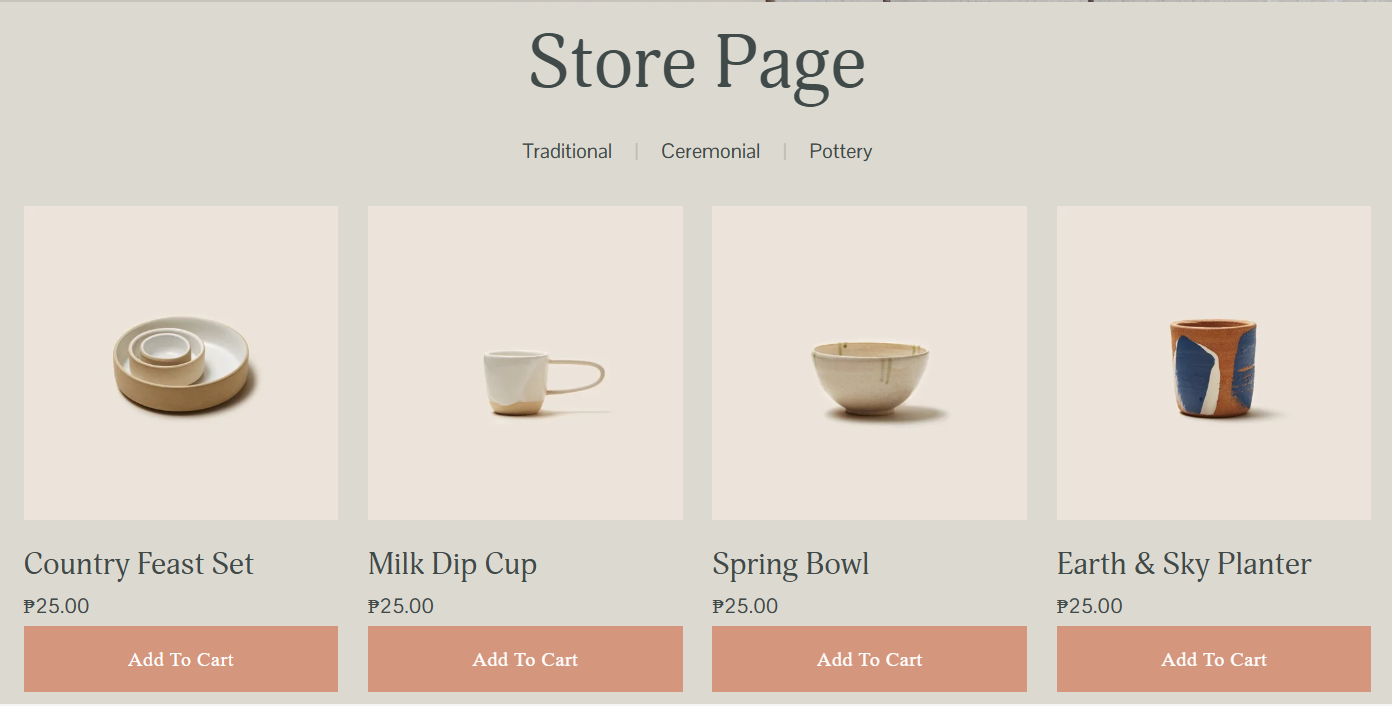
If you want more on the store-side options, see add filtering to your Squarespace store.
Add live product filtering with Universal Filter — $89 one-time.
Limits of Native Squarespace Filtering
Taken together, the native approach is useful but constrained.
Reload-based - First, most filtering is reload-based rather than live. Visitors click into an archive or category view and wait for a new page state instead of seeing results update in place.
One Dimensional - Native filtering is usually one dimension at a time. You can move into a category or tag view, but combining several filters together is not the normal pattern. That becomes a problem when a visitor wants to narrow by more than one trait.
No Live Text Search - There is no live text search operating inside most collections the way people expect from a modern filter bar. Navigation, search, and archive pages exist, but they are separate tools rather than a unified browsing layer.
Structural Limits - Blog pages introduce practical structure limits. They display your collection in pages of 20 items with only 2 navigation - Previous or Next page.
That is fine for curated selections, but it becomes restrictive if you want a deeper filtered library in one place. Imagine the horror of looking for a specific blog in a 200 item collection with only previous and next to navigate.
Portfolio Pages - No filtering for portfolio pages and portfolio support is minimal compared with blogs or products.
Limited Styling Control - Store filters have limited styling control. You’re only limited to a Category and Tags filter. But what if you want to filter your products by Size, Length, Width, Material Type, and Price?
Flexibility - Many site owners end up calling sorting or manual reordering “filtering,” which hides the real gap: native tools often help organize content, but they do not always create a flexible visitor browsing experience.
When You Need Enhanced Filtering
You usually need more than native filtering when the goal shifts from simple archives to active browsing. That means live dropdowns, in-collection search, multiple filters working at the same time, custom sorting, or a page that needs to handle more than 20 items in one filtered view.
Those needs are common on product grids, resource libraries, team directories, portfolio pages, and mixed content sections where visitors arrive with a rough intent but still need help narrowing choices quickly. They are also common on service sites that publish a steady stream of case studies, tutorials, or event recaps and need older material to stay easy to surface.
Just as important, not every site needs that extra layer. If all you need is a curated group, a clean category structure, or better item ordering, staying native is usually the right call. Squarespace already handles that well enough without extra code.
If you are deciding between the two, this breakdown of how Universal Filter differs from the built-in category filter is the useful line to draw.
Universal Filter vs Native Squarespace Filtering
When native archive pages are enough, keep them. When you need live browsing tools on the page itself, the differences become pretty clear. The table below compares what Squarespace does natively with what Universal Filter adds.
| Capability | Native Squarespace | Universal Filter |
|---|---|---|
| Live Filtering (no page reload) | No (page needs to reload) | Yes (updates without reloading page) |
| In-collection text search | No | Yes |
| Multiple simultaneous filters | No (one filter at a time only) | Yes |
| Filter by category / tag | Yes (blog, events, products) | Yes(all supported sources) |
| Sort by price / title | Yes(limited depending on template) | Yes(price and title sorters) |
| Portfolio filtering | Very limited / none | Yes (except Hover layouts) |
| Summary Block filtering | Yes(capped at 30 items) | Yes(can be paired with Lazy Summaries to display more than 30 items) |
| Gallery Block / Gallery Section filtering | No | Yes (on 7.0 + 7.1) |
| Product (Commerce) filtering | Yes(limited styling) | Yes (more control + search) |
| Styling control | Limited to template | CSS-customizable to match theme |
| Works on 7.0 and 7.1 | Yes(feature varies) | Yes |
| Cost | Included in plan | $89 one-time, no subscription |
Universal Filter runs in the browser and follows each block's native item cap unless paired with Lazy Summaries. Performance depends on item and filter count.
Get Universal Filter — one-time $89, works on 7.0 and 7.1, no subscription.
The practical part is licensing. Universal Filter is $89 one-time, with no subscription, no recurring fees, and free lifetime updates. The license does not expire, works on Squarespace 7.0 and 7.1, and can be used multiple times, and on multiple pages on your website.
If you build for clients or run a few of your own sites, that one-time structure is much easier to plan around than another monthly app bill.
How to Add Live Filtering to Squarespace
Setting up is simple. The challenge is navigating through Squarespace pages. You don’t need to have an empty page, you can add the filter immediately on your existing page but feel free to practice on a dummy or demo page to gain some confidence.
For practice purposes, try a collection with existing tags/categories structure first such as a product, blog, events page or summary block. You may add your tags/categories first, if you want, or you can add them after installing the filter.
Other supported page types like portfolio, list and gallery sections, and gallery block do not have a native category/tag structure so we’ll use a different method of adding tags to them.
From there, the process is:
Get a License. Purchase the Universal Filter and receive the install guide by email.
Install Code. Paste the provided code snippet into the Page Header Code Injection or into a Markdown Block if you’re on the Personal plan.
Set up. Click the Get Filter Config button, copy the code and replace the code snippet in the Page Header Code Injection or Markdown block.
If you used portfolio or other supported page types that do not have a native tag/category structure, check the top section of the filter code for instructions on how to add tags.
Customize. Configure the controls you want, such as category buttons, tags, dropdown filters, a live Search field, and price or title sorters.
Style. By default, the filter will use your site’s font and color theme. But feel free to change it to suit your style better.
WARNING: The actual licensed install code is delivered after purchase, so it should not be pasted into a public guide. What matters here is where it goes and what it does once added.
<!-- Squarespace: Page Settings → Advanced → Page Header Code Injection (or a Code Block on the Personal plan) -->
<script src="…provided in your Universal Filter install email…"></script>
![[Screenshot C — Universal Filter live on a real blog page: multiple dropdown filters, sort by title + search field on the left of the blog grid]](https://images.squarespace-cdn.com/content/v1/504fafcf84ae1835d7e5c807/05d10745-50be-4643-921b-7b8866b6fb67/blog+with+universal+filter.png)
Tip: The plugin runs client-side, so a lean filter setup usually feels best: add filter controls visitors actually need rather than adding every possible option.
What Universal Filter works on
Universal Filter works across a wider mix of Squarespace sources than the native filter UI does, which is part of why it fills the gap well. It supports Blog, Products, Gallery, Events, and Custom Post Types in List Collections, plus Summary Blocks and Gallery Blocks.
On Squarespace 7.1, it also works with Gallery Sections, Portfolio Pages except Hover layouts, and User Item Lists. On Squarespace 7.0, it also works with Gallery Pages, Indexes with Galleries, and Indexes with Pages.
Here’s a table of the supported pages and block types:
| Page/Block Type | Squarespace 7.1 | Squarespace 7.0 |
|---|---|---|
| Blogs | Yes | Yes |
| Products | Yes | Yes |
| Events | Yes | Yes |
| Summary Blocks | Yes | Yes |
| Gallery Blocks | Yes | Yes |
| Gallery Sections | Yes | Not Available |
| Portfolio | Yes | Not Available |
| Video Pages | Yes | Not Available |
| User Item Lists / Auto Layout | Yes | Not Available |
| Gallery Collection | Not Available | Yes |
| Galleries with Index | Not Available | Yes |
For controls, you can use category, tag, and dropdown filters, plus price and title sorters and a live Search field that combines with the active filters.
In practice, that means you can use one plugin across several page types instead of solving each content area with a different workaround. If you need version-specific confirmation, see Universal Filter works with Squarespace 7.1.
High-item-count pages (Lazy Summaries)
The biggest practical cap to understand is the Summary Block’s 30-item limit.
Blogs display 20 items per page but can add unlimited pages. Products can display up to 200 items per page for up to 10,000 items.
Events can add 350 items per month while Gallery blocks and Item List blocks have a 250 item limit. Even Portfolio has 60, twice as much as a summary block.
Universal Filter follows the source block's native limit, which is why a filtered Summary Block can still feel tight on larger libraries.
The fix is pairing it with Lazy Summaries, which takes the Summary Block from 30 items to the limit of it’s data source. This means up to 10,000 if you’re displaying products and virtually unlimited for blogs.
But beware, high-item count pages will also load slower because of the volume of items it has to load. So use it with discretion.
What Customers Say
★★★★★
"This filter plug in worked perfectly! So thankful I stumbled across it. Their customer service was incredibly responsive and helpful."
Lisa B — Apr 20, 2026 — Universal Filter
★★★★★
"This is an amazing plugin that does all that it promises and adds exceptional functionality to any website. If you're coding savvy you can even fully customize it to your needs."
Robert W — Apr 20, 2026 — Universal Filter
★★★★★
"Super easy to use and does exactly what I wanted it to. Highly recommend."
Ocean O — Dec 3, 2025 — Universal Filter
★★★★★
"Great product, AAA+ customer support. Loving the Universal Filter and already looking through other products."
Jason Z — Feb 4, 2025 — Universal Filter
Frequently Asked Questions
Squarespace's built-in category filter usually sends visitors to archive pages and reloads the page.
Universal Filter adds live on-page filtering, a search field, multiple filters working together, and sorting controls. It is meant for browsing on the page itself, not just jumping between archive views.
Yes. Native Squarespace blogs let you assign categories and tags, then visitors can click those labels to open filtered archive URLs.
That works well for simple topic grouping, but it is reload-based and not a live filter bar above the posts.
Squarespace Commerce offers some native filtering on supported shop pages, usually around categories and certain built-in options.
If you need live filtering, in-collection search, or more control over the browsing experience, a plugin can extend supported store pages without changing how products are managed.
Galleries and portfolios are two places where native visitor-facing filtering is limited or absent, especially on newer portfolio layouts.
A plugin approach works better when you want visitors to switch between categories, tags, or other groupings without leaving the page each time.
Yes. Universal Filter works with Squarespace 7.1, including Gallery Sections, User Item Lists, and Portfolio Pages except Hover layouts.
It also works on Squarespace 7.0, so the same license covers both major version families when you are building across client sites.
Yes, as long as you use Universal Filter on supported block types (e.g. summary blocks, list sections, gallery section, gallery blocks). You can combine category and tag filters, use multiple dropdowns, add title/date sorters and search field on the same page.
That is the main difference from the usual one-dimension-at-a-time native archive pattern.
Yes. Universal Filter runs client-side and updates supported lists in place, so visitors can refine results without triggering a full page reload each time.
That creates a more direct browsing flow, especially when search, sorting, and multiple filters are being used together.
Two common causes are using the wrong source or collection type, and expecting categories attached only to unpublished items to appear as filter options.
It is also worth checking that the page or block you are targeting is one of the supported sources for the filtering method you chose.
Final Thoughts
Native Squarespace filtering is often enough when the job is simple: curated groups, basic category archives, light product filtering, or manual ordering. It keeps the stack small and fits the platform well.
But when visitors need live, searchable, multi-filter browsing, that’s the point where Universal Filter starts making practical sense.
Ready to give visitors real filtering? Universal Filter installs in minutes.
About the Author
Taylor Miles is the founder of Squarewebsites, the original Squarespace plugin shop, active since 2018. He built the Universal Filter plugin and the SquarespaceWebsites Tools PRO Chrome extension, used by 9,000+ Squarespace designers.
He writes about pushing Squarespace 7.0 and 7.1 past their native limits.