Enable Lazy Summaries
How to use the Lazy Summary plugin through the Chrome Extension Tool Pro
You need a PRO subscription because this option is only available in the PRO version.
Step 1. Turn on the Extension Tool
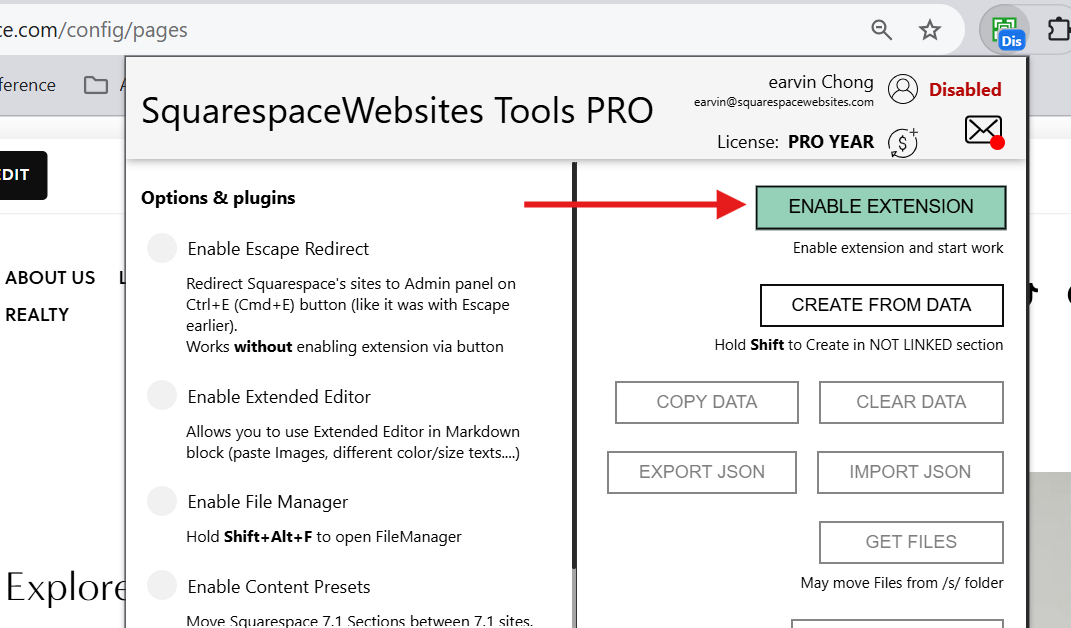
Sign in and turn on the Extension Tool by clicking the ENABLE EXTENSION button.
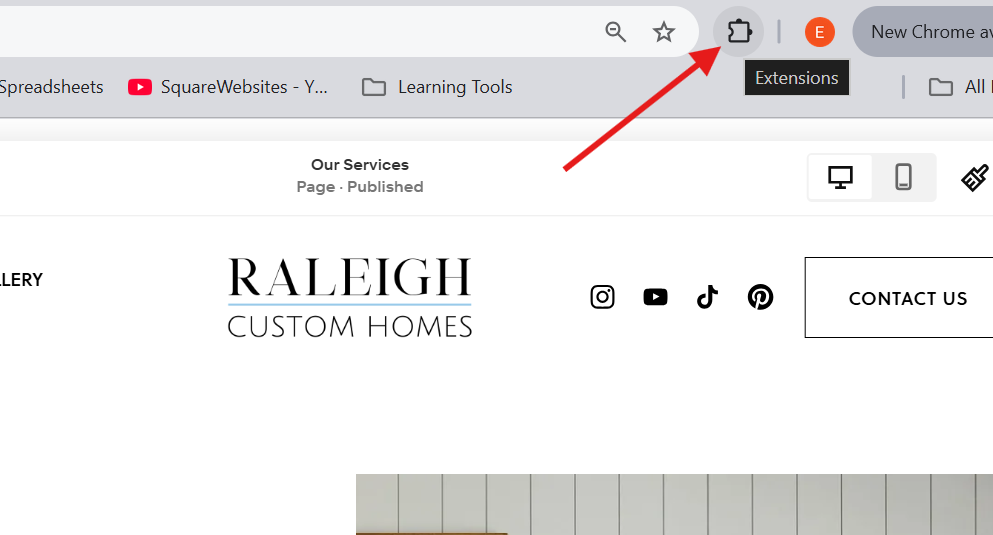
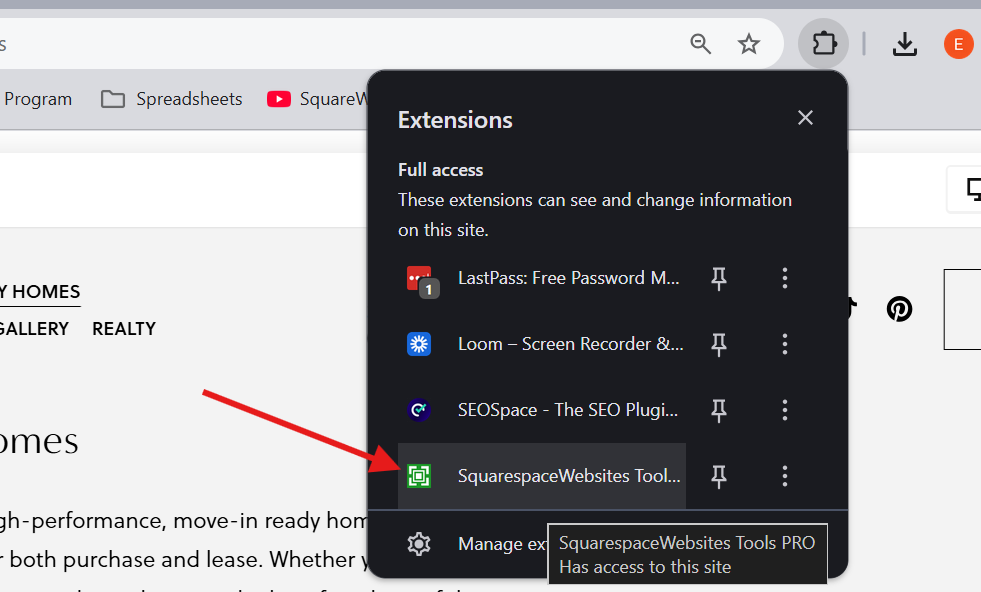
Step 2. Paste the required code
Copy the required code and paste it in the Footer. Remember to SAVE your code before exiting Code Injection.
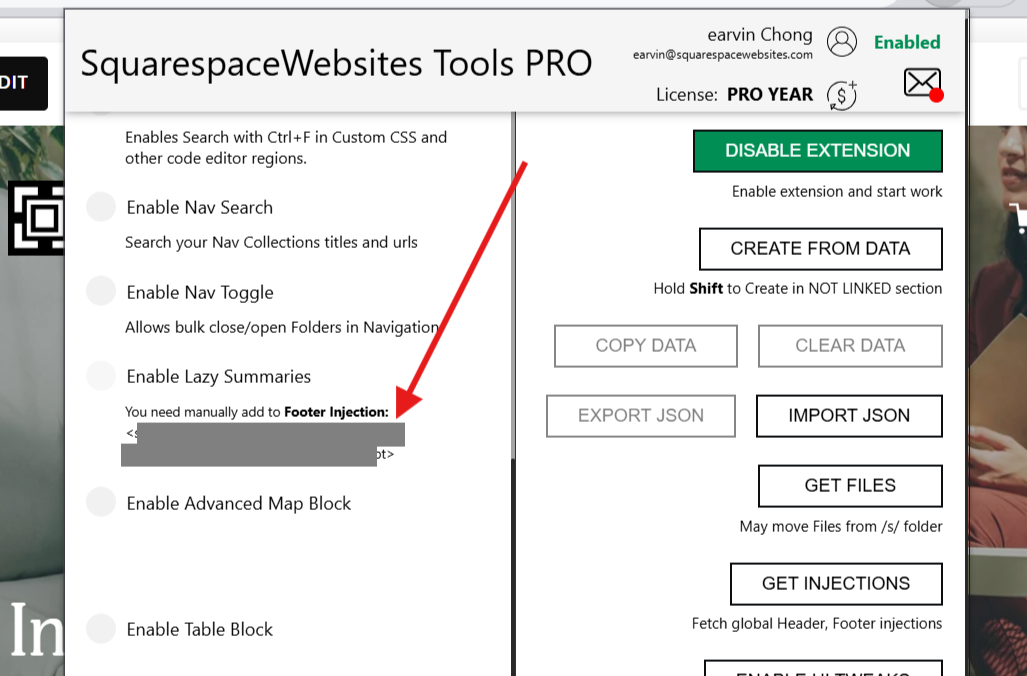
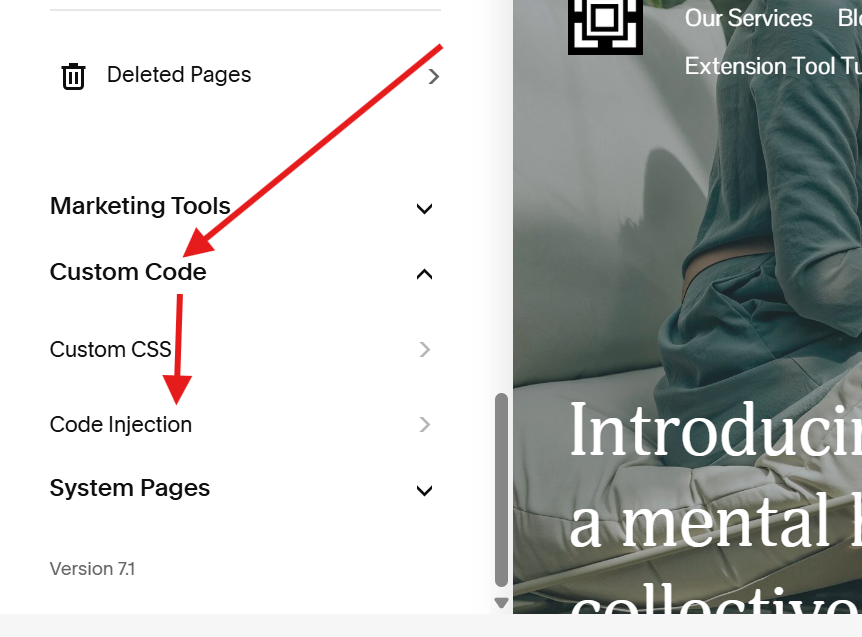
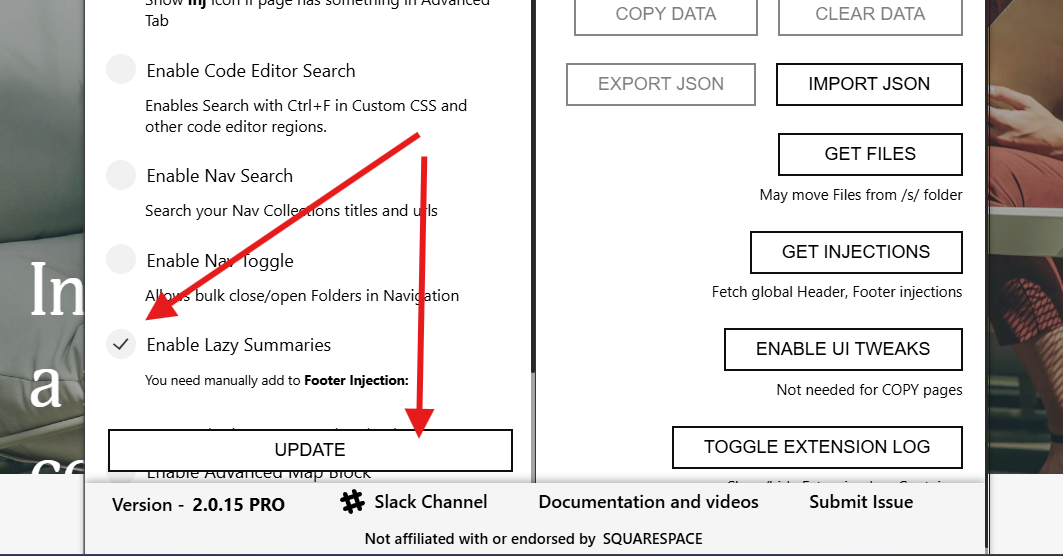
Step 3. Enable Lazy Summaries
Open the extension tool and click the rounded button next to Enable Lazy Summaries, then click the UPDATE button.
This will reload your page to apply the lazy summary plugin so make sure you save any progress or change you made on your page if you’re currently working on it.
Step 4. Check for Lazy Summary
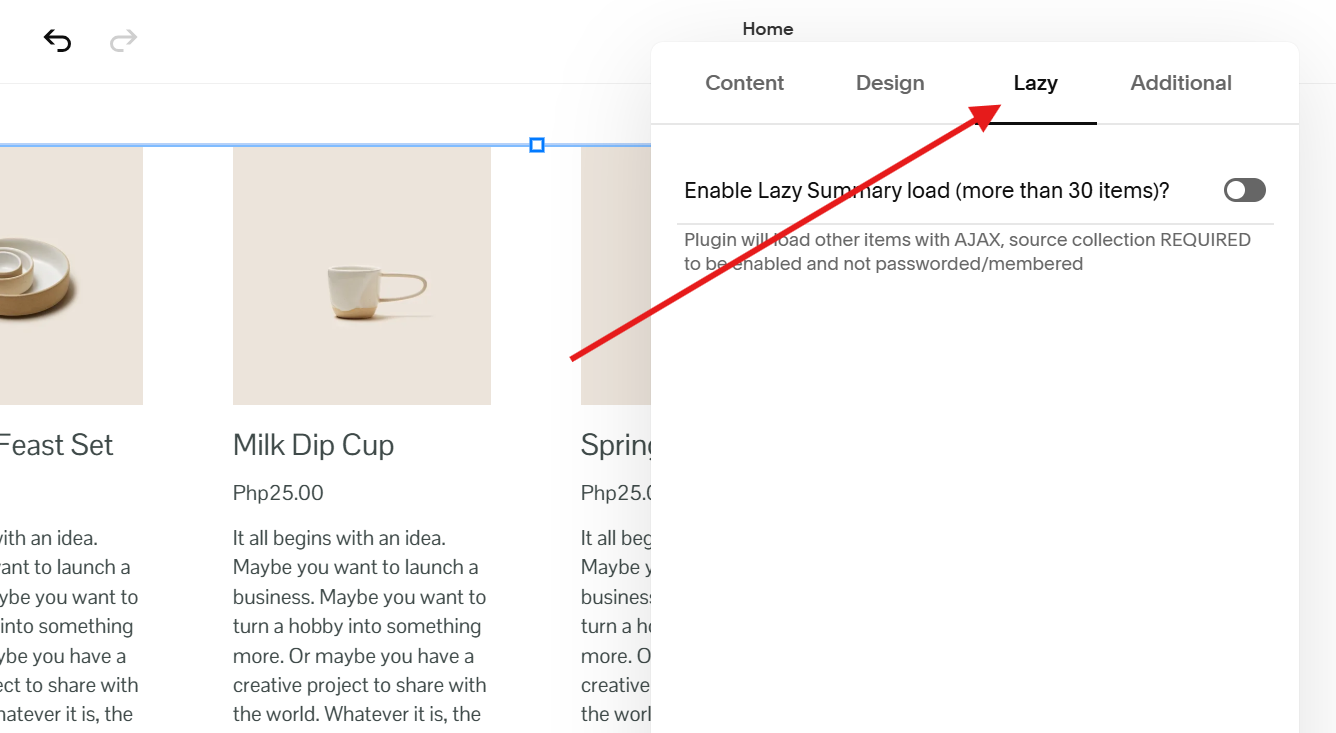
Open a summary block setting and check if you see Lazy and Additional tabs in the settings.
If you don’t see the lazy summary settings , try re-opening the summary block settings.
IMPORTANT:
Make sure to enable the extension when you want to use the lazy summary plugin or it will be automatically disabled.
What’s Next?
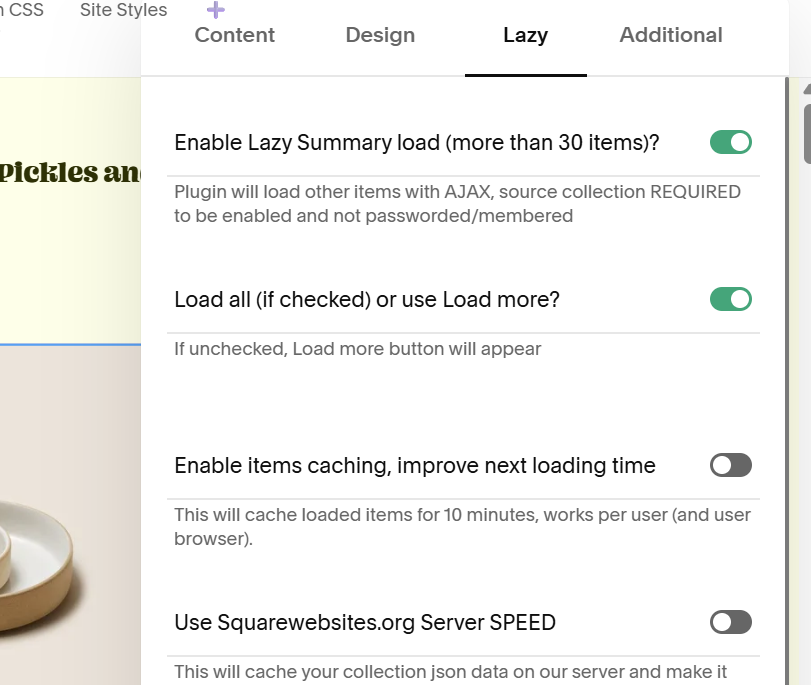
Toggle the button next to Enable Lazy Summary Load option to turn on the plugin and display more summary block items.
And if you want to know more about the lazy summary settings and what you can do with it, check the tutorials.
Frequently Asked Questions
-
The Lazy Load or Lazy Summary is a plugin that lets you display more than the 30-item limit of the summary block.
Choose how you want to display your summary block items:
Load More button
Load All Items at once
Load Items as you scroll
-
No, you need the PRO subscription to use the lazy load plugin or just buy a regular Lazy Summary license.
-
Yes, this works on both versions of Squarespace.
-
The lazy summary will still work when your subscription ends. It keep displaying all the items on your summary block.
But you won’t be able to edit the lazy summary. This means if you add/change/remove items to your summary block display, it will not be reflected.