
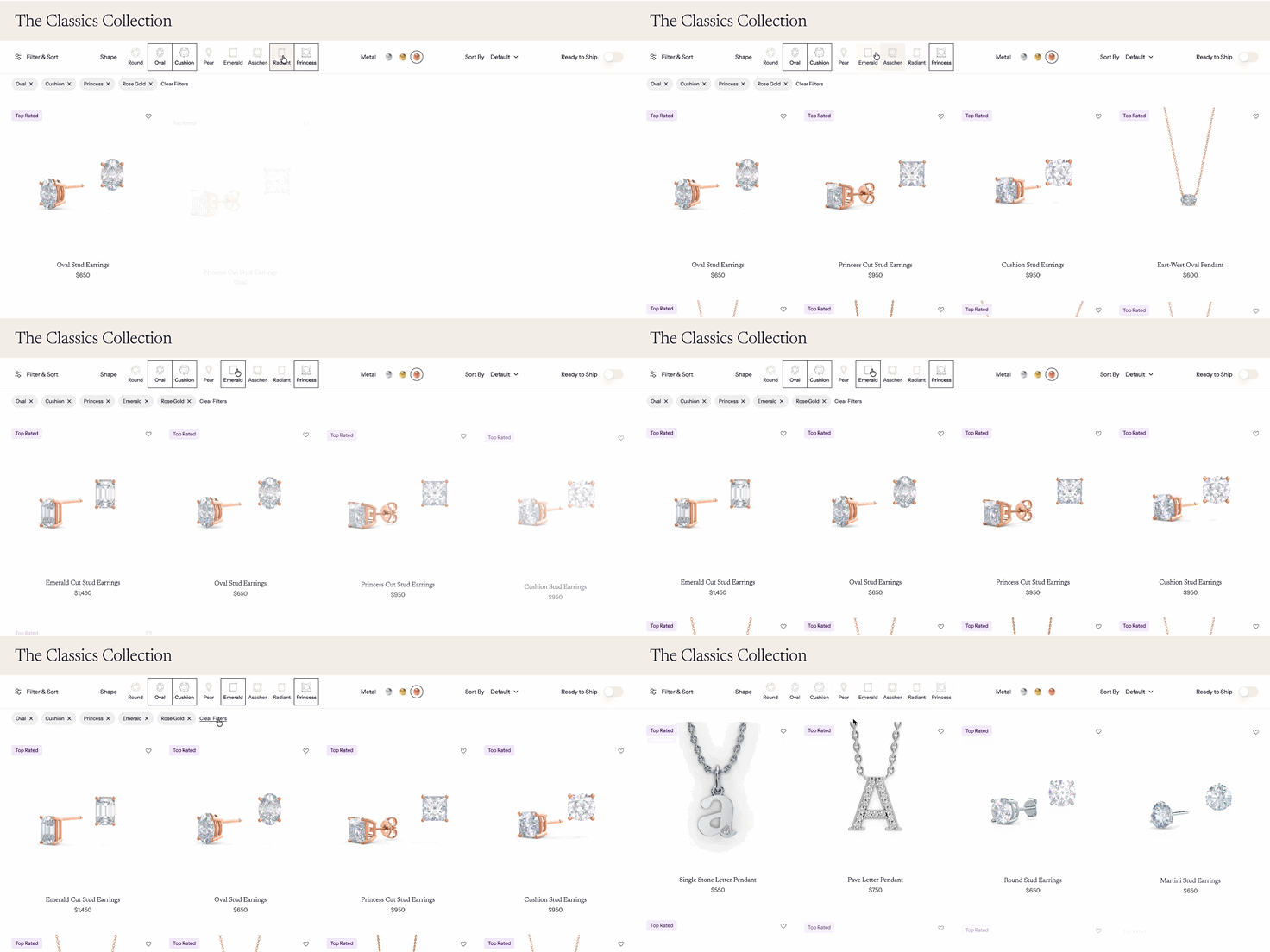
 Image 1 of 4
 Image 2 of 4
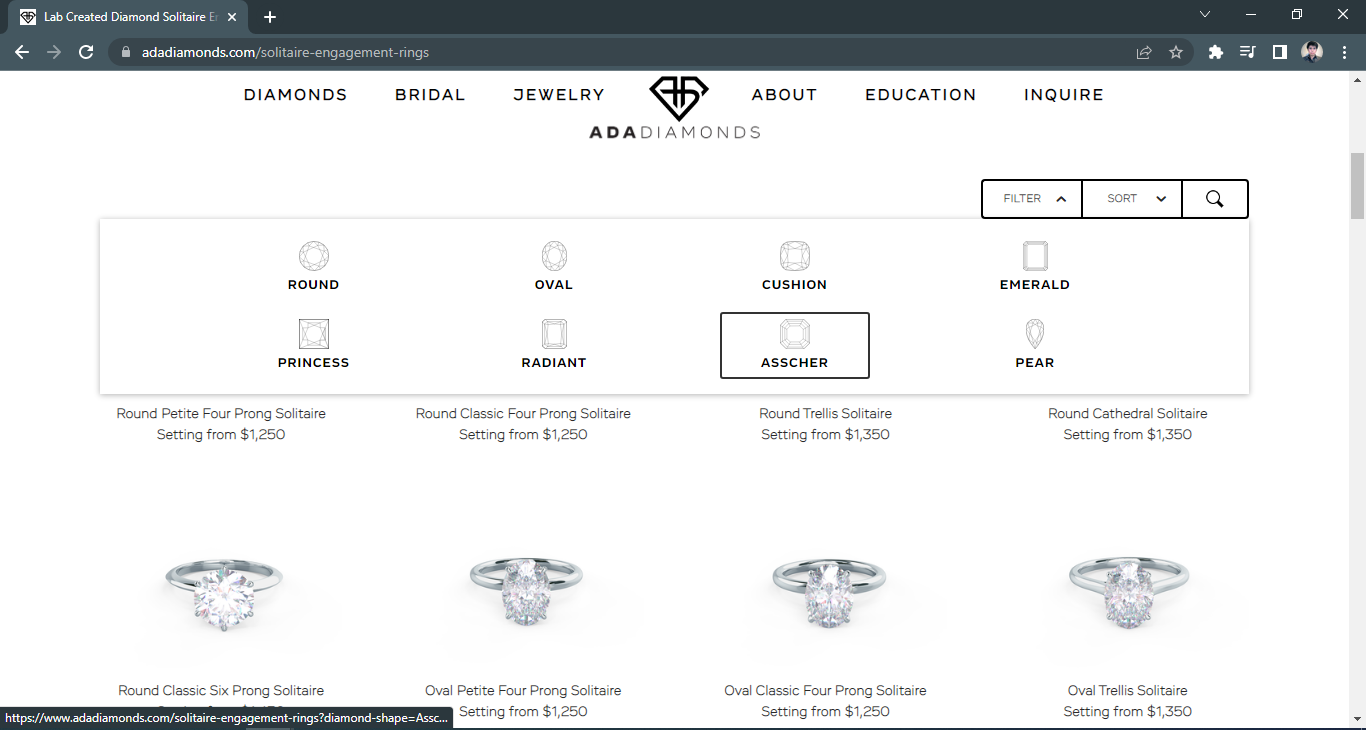
 Image 3 of 4
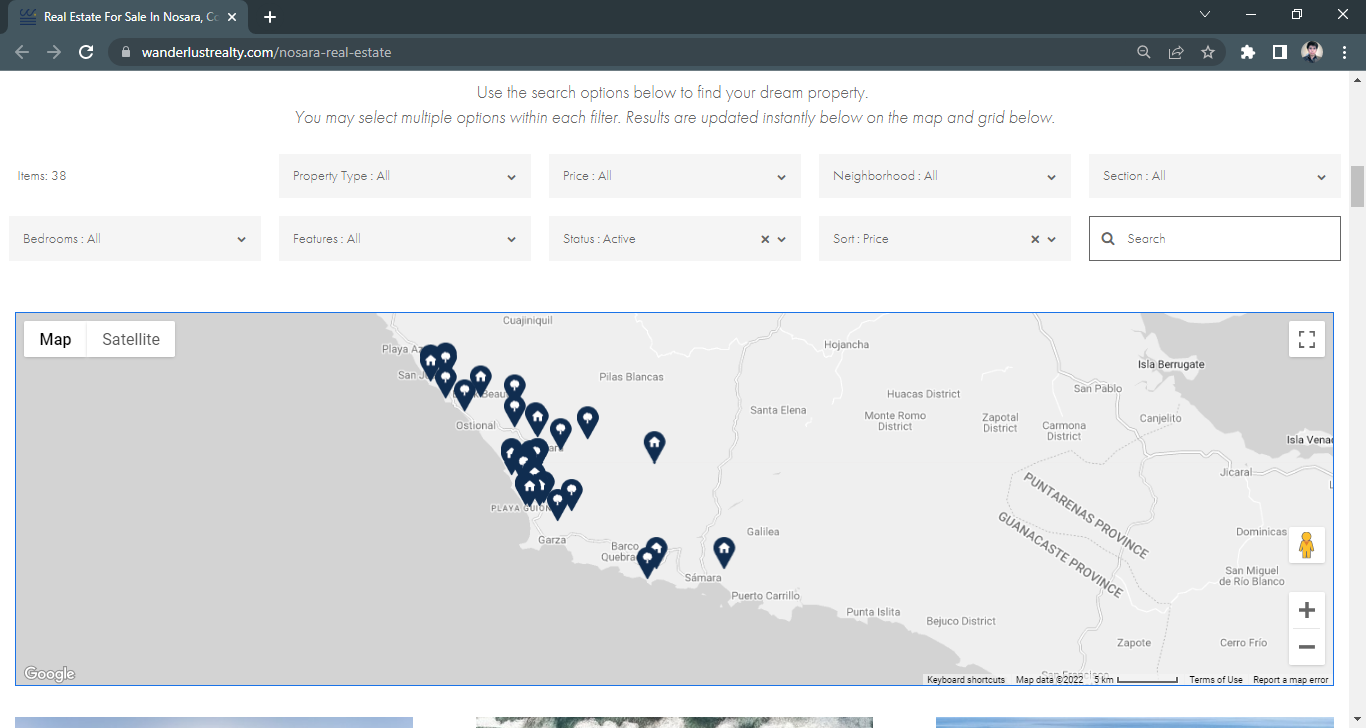
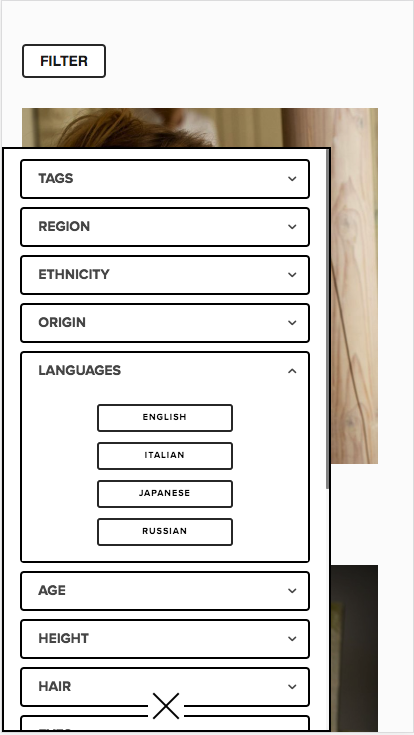 Image 4 of 4
What you need to know:
-
Platform Compatibility: Works seamlessly on both Squarespace 7.0 and Squarespace 7.1.
Price: One-time fee of $89.
Support: Includes Basic-setup Support (Free) and Paid Support ($45/hour).
-
Universal Filter works on Squarespace 7.0 and Squarespace 7.1.
You can use the it on these content blocks and pages:Blogs — 7.0 and 7.1
Products/Store — 7.0 and 7.1
Events — 7.0 and 7.1
Summary Blocks — 7.0 and 7.1
Gallery Blocks — 7.0 and 7.1
Gallery Sections — 7.1 only
Portfolio — 7.1 only
Video Pages — 7.1 only
User Item List (a.k.a. Auto Layout) — 7.1 only
Gallery Collection — 7.0 only
Index Pages — 7.0 only
Galleries with Index — 7.0 only
Table Block — 7.0 and 7.1
Map Block — 7.0 and 7.1
-
1. Display Limit
Universal Filter depends on the display limit of the page or block you use it on.
For example, if you use it on a summary block, it only displays 30 items because that’s the summary block’s display limit. But if you use it on blogs, it’ll display up to the thousands because blogs virtually have no limit.
If you don’t know the display limit of the page or content block you’re using, you can read about it here: Squarespace collection limits.
Want to load more summary block items?
Use Universal Filter together with the Lazy Summaries Plugin, to extend the Summary Block limit from 30 to unlimited.
2. Cache Time Delay
Universal Filter saves your filter data on our server to load it faster on consecutive page visits. And automatically updates the server data in windows of 10 minutes.
What this means for you is when you add/change/remove tags or categories to products, it may not immediately reflect on your filter because the 10-minute window hasn’t passed yet.
This is what we call a cache time delay.
An easy workaround to this limit is to simply open your page on an incognito window or clear your browser’s cache.
The cache time delay only takes a few to several minutes. If it takes longer than that, report it to us and we’ll get it sorted.
-
You do not need coding knowledge to install and set up Universal Filter because it’s just copy/paste.
We also have tutorials and documentations to instruct you on how to set up, customize and style your Squarespace filter. And if you run into any problem, our customer support is ready to help you.
Having said that, knowing some JavaScript (JS) and Cascading Style Sheets (CSS), is handy if you want to customize or style the filter yourself.
-
After purchasing Universal Filter, you'll receive an email containing a .txt file and the links to the complete installation guide.
Simply paste the code to Page Header Code Injection (or a Code Block if you're on the Personal plan). Then follow the instructions in the installation guide.
The .txt file contains the code you need for installation. If you haven’t received it, please request to resend it to you.
Same goes for the links to the installation guide.
-
- Basic Support is FREE
This includes installing and setting up Universal Filter with the default configuration on your Squarespace website.
The default configuration depends on where you’re using the filter:
Category & Tag Dropdown Filters + Title/Date/Price Sorters + Search Field
(for blogs, products, events, summary blocks )Button Filters + Search Field
(for portfolio, galleries, list section, Index pages)
- Paid Support
For heavy customizations, specific styling requirements, or advance filter setups, we offer paid support at $45/hour for.
Where can I reach you?If you need plugin support, basic or paid, contact us.
| Feature | Universal Filter | Native Squarespace |
|---|---|---|
| Category Filtering | ✓ | Limited |
| Tag Filtering | ✓ | Limited |
| Search Field | ✓ | Limited |
| Multiple Filters | ✓ | No |
| Product Filtering | ✓ | Partial |
| Portfolio Filtering | ✓ | No |
Why Choose Universal Filter Instead of Native Squarespace Filtering?
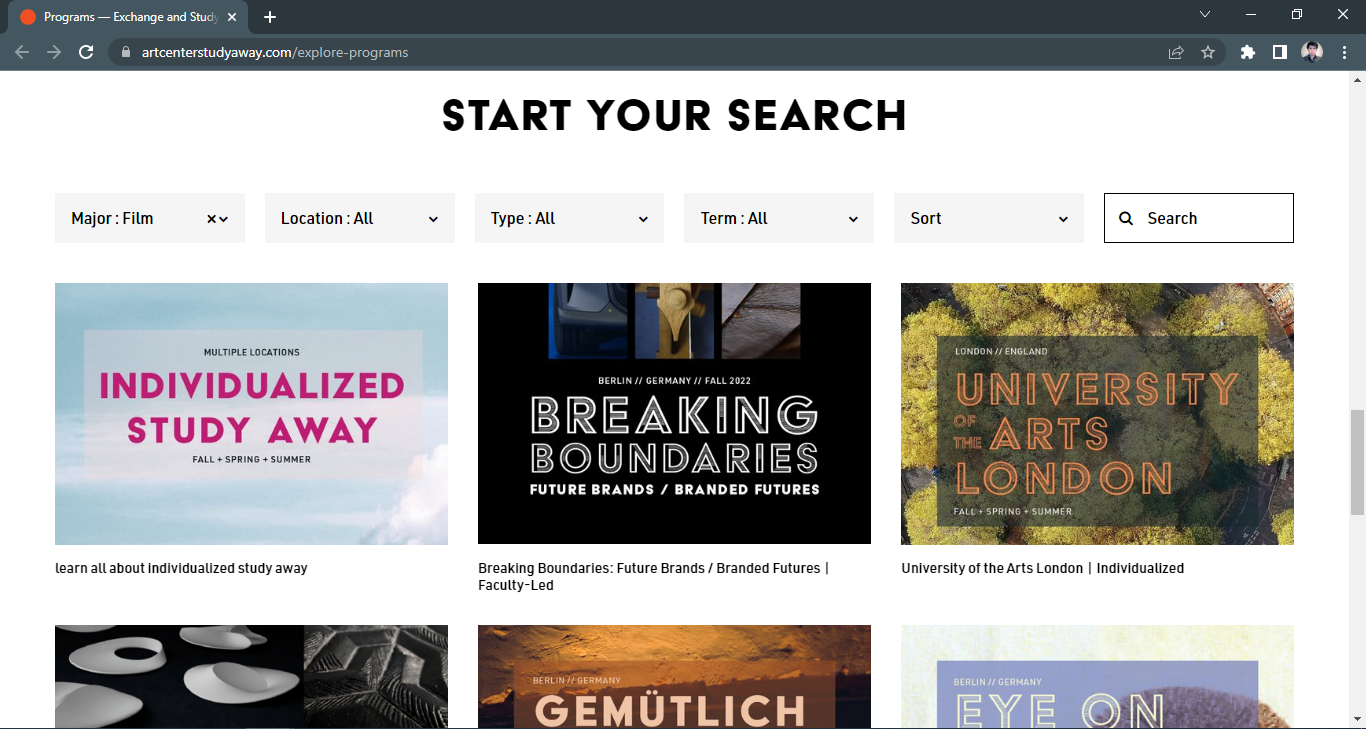
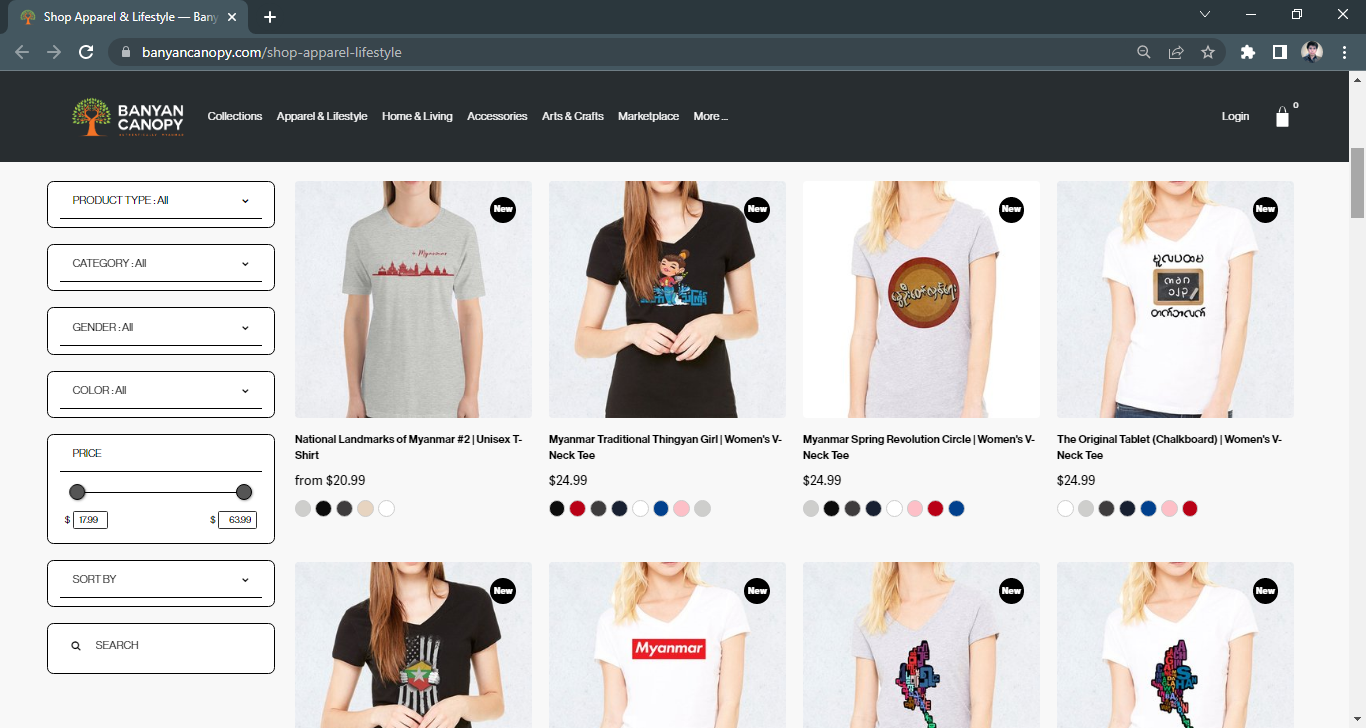
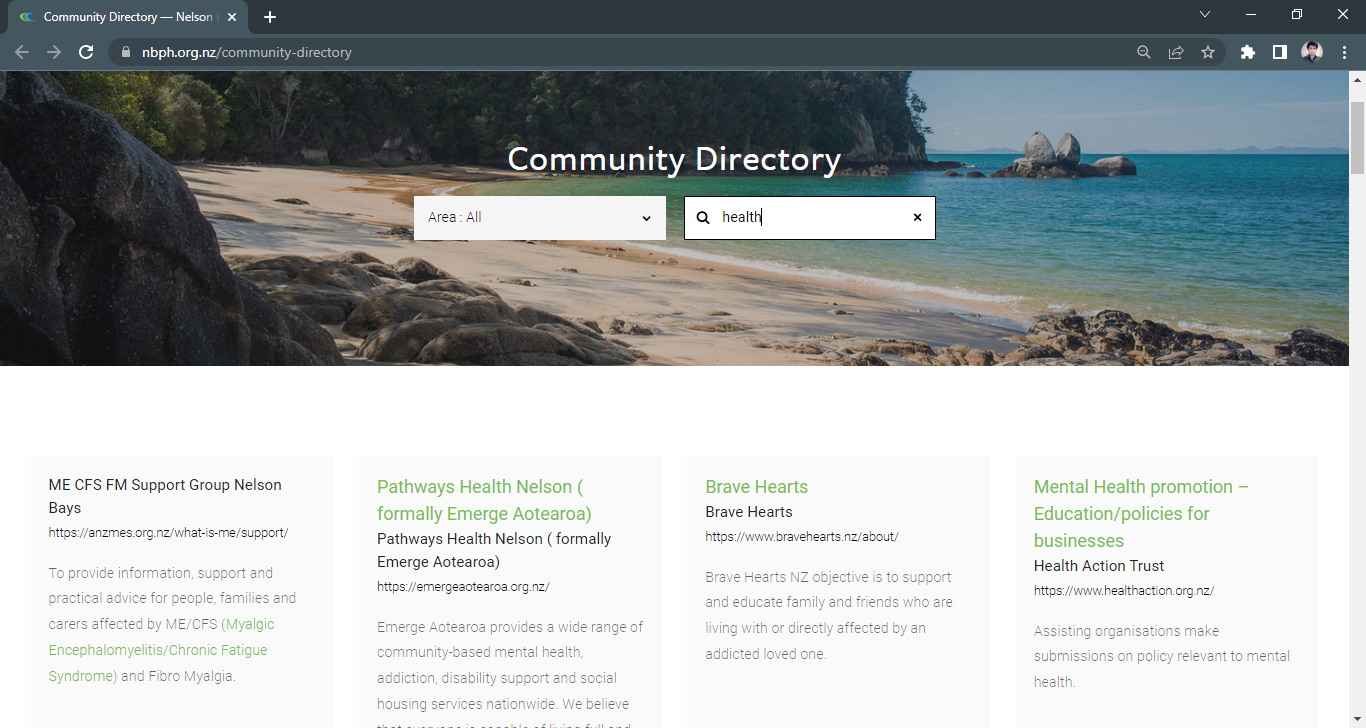
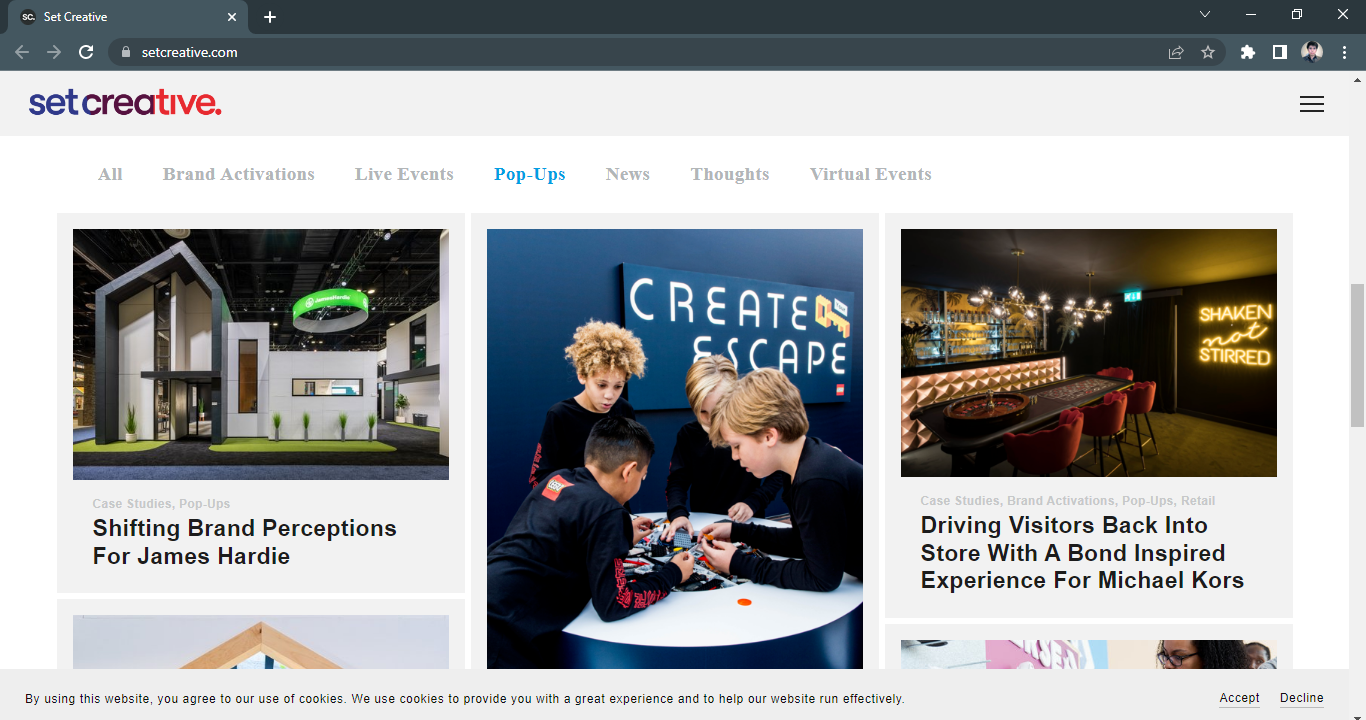
Universal Filter Examples
Hey! Wanna see real and working example of Squarespace sites using the Universal Filter?
Check these out, notice some of the examples are customized with JS/CSS or may even use not just Universal Filter plugin.

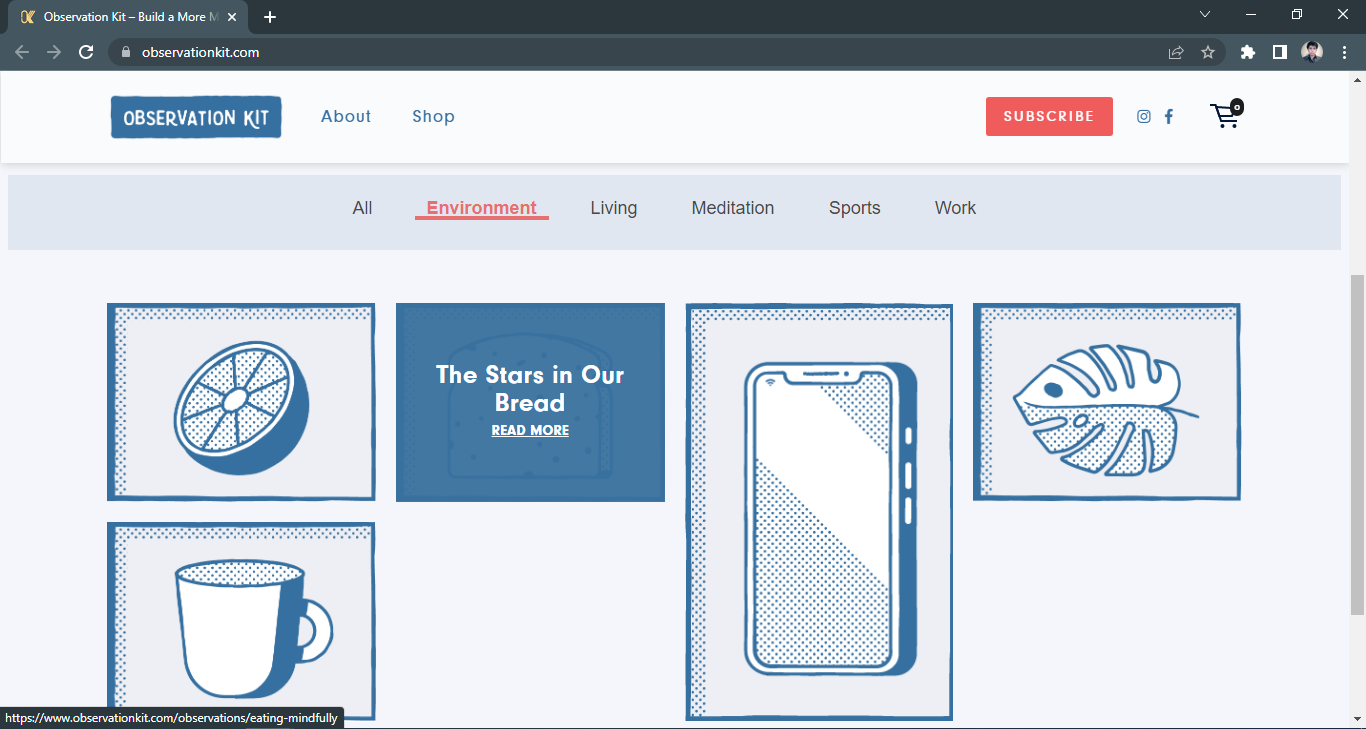
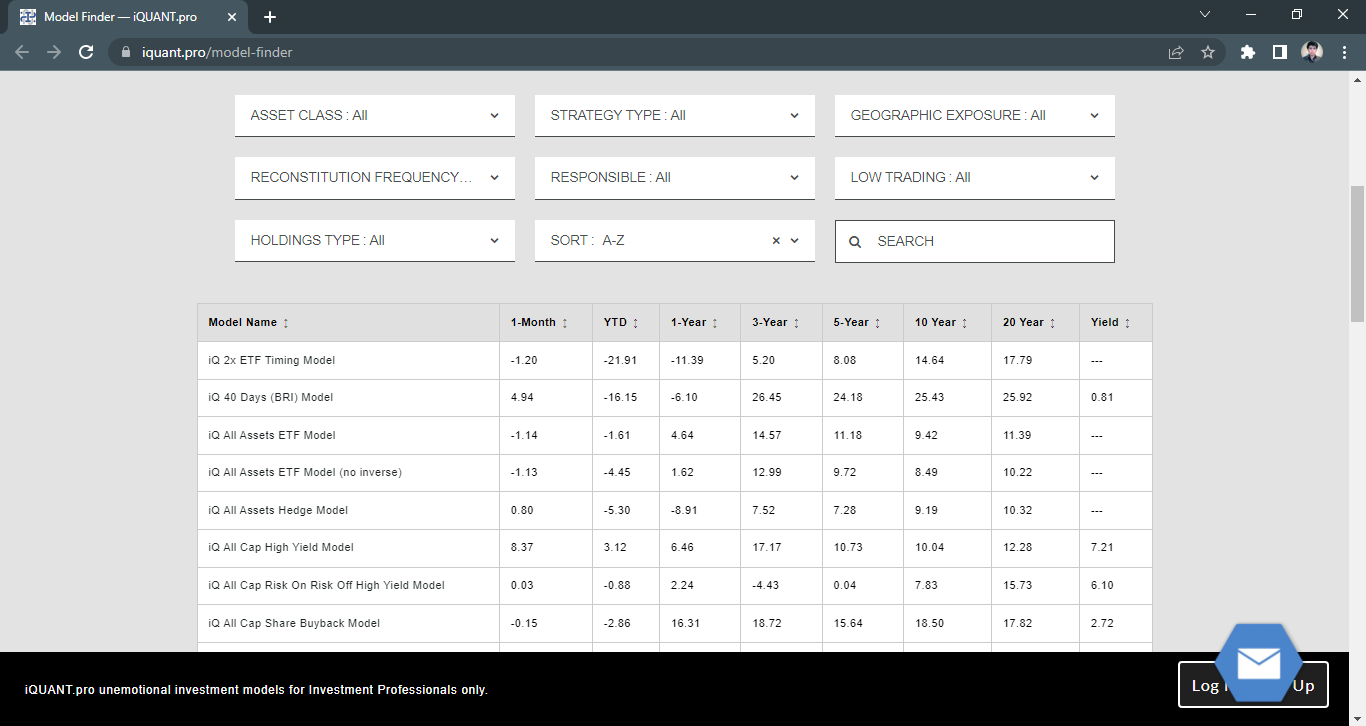


More Examples of Universal Filter
Here’s a review video from Phil Pallen talking about great ways to use the Universal Filter plugin on your website.
Frequently Asked Questions
I. GENERAL QUESTIONS
-
Yes, non coders can use Universal Filter.
Installing the filter plugin is just copy/paste. And unless you need heavy customizations to your filter, changing settings is mostly copy/paste.
The challenge is where to paste and what to paste. That’s why we have the documentation page and tutorials for non coders to follow.
And if you need help, run into an issue or have questions, contact us. We respond.
-
Yes, the Universal Filter works on Squarespace version 7.0 just as well as it does on 7.1.
-
Not necessarily.
Although we recommend to paste the Universal Filter code in the Page Header Code Injection (which only available on Business plans) you can still use the filter plugin on Basic plan by pasting the filter code on a markdown block instead - Add a markdown block on your page, paste the filter code and save.
-
No, the Universal Filter license does not expire.
-
Universal Filter license is a one-time payment per Squarespace website. It’s not a subscription. So there’s no recurring payment once you purchase it.
-
Yes, we do. We have a 30-day refund period.
If the Universal Filter does not fit your needs or we can’t help you, tell us and we’ll refund your purchase.
-
Yes, we do.
Basic support is FREE - this includes installing the filter and setting up with the default configurations (i. e. Categories, Tags, Dropdowns, Buttons, Search Field and Price/Title Sorting).
But if you need help for specific filter styling and applications, Paid Support costs $45/hour.
We also do custom coding at $65/hour for solutions not covered by the plugin.
How to get help? Contact us.
-
It depends on where you use it.
How Universal Filter affects your collection data?
The Universal Filter does not change your collection data. It only reads the tags, categories and texts on your collection to know which items belong to which filter.
It waits for all items to load before displaying the filter options. This means a bigger collection (like a collection of 500 blog or 1000 products) will load slower than a smaller collection (like a 60-item portfolio or a 30-item summary block).
How much time are we talking about?
Between a second and a couple of seconds.
If you’re using the filter on product pages you might experience a delay when adding new products, tags and categories. This is because we save your filter data on our server and the caching time is 10 minutes.
But that’s it. If it takes longer than that contact us and we’ll fix it for you.
-
First you have to purchase the plugin. After purchasing the plugin, you’ll receive an email with a .txt file.
Open the .txt file and follow the instructions to access the Installation Guide.
Follow the instructions you see on the top of the page for the basic setup.
Then change the settings according to your needs, you’ll find the codes in the sections below the installation instructions.
-
The links to the documentation page and tutorials are found in one of the emails you receive when you purchase Universal Filter. To be specific, please refer to the first section of the documentation page for the instructions on how to install the filter plugin.
If you can’t find the link or email, contact us and we’ll resend it to you.
-
Anyone who needs to add a filtering option to their Squarespace website to help their customers search, sort and organize collections.
The Universal Filter works on these pages and block types:
Blogs
Products
Portfolio
Events
Summary Blocks
Video Pages
User Item List / Auto Layout
Gallery Sections
Gallery Blocks
Gallery Collections (in 7.0)
Index Pages (in 7.0)
Indexed Galleries (in 7.0)
-
Yes, as long as you’re using Universal Filter on a supported block or page.
You can add multiple filters on:
a single page (e.g. multiple summary blocks)
multiple pages (e.g. summary blocks on multiple pages)
different pages (e.g. blogs, store, portfolio, events, galleries, etc.)
-
Yes, you can select multiple filters on one category or select multiple filters across different categories.
And Universal Filter lets you choose how you want to combine the results. Whether you want to show all items with the selected filters like a net or narrow down to the single item that has all the selected categories like a funnel.
-
Yes, as long as you’re using Universal Filter on a supported block or page.
You can use it on:
similar pages (e.g. summary blocks on multiple pages) or,
different pages (e.g. blogs, store, portfolio, events, galleries, etc.).
And you can use the filter on those pages simultaneously or separately.
-
You need to purchase a Universal Filter license for each website. But you can use it multiple times on multiple pages on 1 site.
-
Yes, but it’s important to understand that Universal Filter does not change the limit of blog pages. It only extends how many blogs you can display per page but the total number of blog pages stay the same.
Also important to know, you can load all your blogs in 1 page with the filter’s pagination setting. But the more blogs you display per page, the longer the page will load. So use it with discretion.
(This also applies on products pages.)
-
Yes, the Universal Filter works great for team pages so you can filter by member’s specialty, position, tenure, location, branch, etc. Whether you’re using a list section, auto layout, blog pages or summary blocks for your team page, Universal Filter can help you.
Not sure if filter will work on your page? Contact us and we’ll assess your page if this Squarespace plugin is applicable on your page.
-
Yes.
(1) The Universal Filter plugin filters product by category, tag, and price. It also filters by product variants and stock availability.
(2) Sorts products by their:
title (A-Z / Z-A),
date added (New - Old / Old - New),
price (highest-lowest / lowest-highest),
number of stocks (high-low/low-high)
custom data
(3) And searches products by texts including titles, descriptions, IDs, SKUs, tags and categories.
-
Yes, the Universal Filter works on paywalled (a.k.a. members only) content if the data collection and the page you’re using it on are both behind the paywall.
For example, you have a blog collection for exclusive content on your paywall.
It will work if you:
✓ Use the filter on the blog collection
✓ Use the filter on a summary block but the page stays behind the paywall
But it will NOT work if:
X Use the filter on a summary block outside the paywall while the blog stays behind the paywall (and vice versa)
-
Yes, you can use Universal Filter on Squarespace trial accounts, and unpublished websites so you can test the filter if it works for your project before applying it on a live site or publishing your website.
You can also use it on Basic Account by pasting the filter code on a Markdown block
(though we recommend pasting it on Page Header Code Injection because content blocks are more susceptible to Squarespace updates). -
Yes, you can use Universal Filter on unpublished Squarespace websites and trial accounts. So you can test the filter if it works for your project before applying it on a live site or publishing your website.
You do not need to wait for your site to go live before using the filter plugin.
-
Yes, you need the Lazy Summaries plugin if:
You’re using Universal Filter on a summary block and,
You want to extend the summary block’s limit to show more items.
If these 2 conditions don’t describe your case, then no, you do not need Lazy Summaries.
-
Here’s the list of all the block and page types supported by the Universal Filter:
Products (7.0 and 7.1)
Blog (7.0 and 7.1)
Summary Bock (7.0 and 7.1)
Events Collection (7.1)
Gallery Collections (7.0)
Gallery Section (7.1)
Gallery Block (7.0 and 7.1)
Portfolio (7.1)
User Items List (7.1)
Video Pages (7.1)
Index with Galleries (7.0)
Index with Pages (7.0)
-
Yes, Universal Filter will work with Weglot if you turn on the option to ‘translate dynamically loaded content’ in the Weglot dashboard.
That’s also the condition for other language translating plugin. If they can translate dynamic loaded content, the Universal Filter will work with them.